

Direct answer: A WhatsApp team inbox lets several people answer customers from one business WhatsApp number. Each person has their own login, and every chat can be assigned, tagged and resolved in one shared queue. The free WhatsApp Business app links only four devices, or 10 with Meta Verified multi-agent. Bigger teams use the WhatsApp Business API with a team inbox, which adds round-robin routing, permissions and AI agents.
Key takeaways
- A WhatsApp team inbox lets several people reply from one business number, each with their own login, and every chat has an owner.
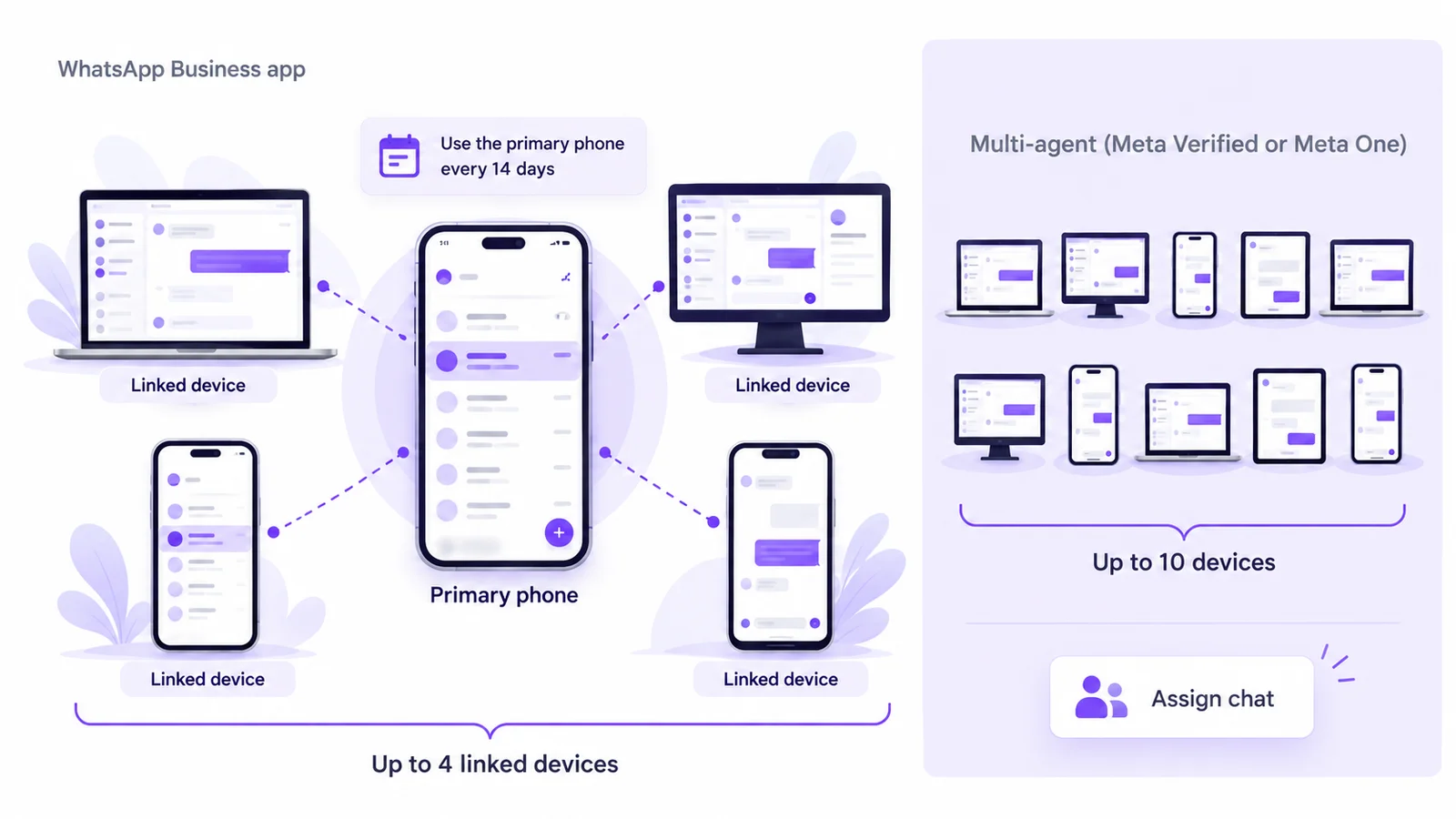
- The free WhatsApp Business app links up to four devices. Meta Verified or Meta One subscribers can use multi-agent: up to 10 devices and chat assignment.
- Linked devices still depend on the primary phone, which has to be used at least every 14 days, and broadcast lists don't work on linked devices.
- On the WhatsApp Business API, a team inbox adds round-robin routing, team rules, per-agent permissions and AI agents that answer first.
- Customers see one business number. They never see which agent replied.
- Meta gives each business phone number 1,000 free service messages a month, and the whole team shares that pool.
We checked the WhatsApp Business app limits below against WhatsApp's Help Center articles About multi-agent and How to link a device on the WhatsApp Business app on 17 October 2026. Meta changes these features often.
What is a WhatsApp team inbox?
A WhatsApp team inbox is one shared list of customer chats for one business number. Sales, support and billing sign in with their own accounts instead of passing a phone around. Every chat has a status (unassigned, assigned, resolved) and an owner, so two people don't answer the same customer and nobody assumes someone else has it.
"Team inbox", "shared inbox" and "multi-agent inbox" mean the same thing. If you've been searching for WhatsApp Business with multiple users, this is it. The customer still sees one business name and number. Behind it, your whole team can work the same queue.
This guide is about WhatsApp only. If you also handle Instagram DMs, read our guides to running Instagram and WhatsApp in one shared inbox with AI agents and Instagram DM automation with a WhatsApp shared inbox.
WhatsApp Business app limits: linked devices and multi-agent
Before you buy anything, know what the free app already does. According to the WhatsApp Help Center:
- Up to four linked devices. You can use WhatsApp Business on up to four linked devices (web, desktop or companion phones) besides your primary phone.
- The 14-day rule. The primary phone doesn't need to stay online, but if nobody uses it for more than 14 days, every linked device disconnects.
- New devices need the primary phone. You register the account and link each new device from the primary phone by scanning a QR code.
WhatsApp also offers a paid step up called multi-agent, part of Meta Verified or Meta One subscriptions. It raises the limit to 10 linked devices, lets you name each device after the agent using it, assign chats to agents, and see which agent or device sent a message. WhatsApp notes that the premium version may not be available to you yet.
There are catches. Broadcast lists can't be created or viewed on linked devices. With more than four linked devices, calls ring only on the primary phone. If the subscription lapses, only the four most recently active devices stay linked. And there's no routing: someone still has to hand out every chat.
Business app vs multi-agent vs an API team inbox
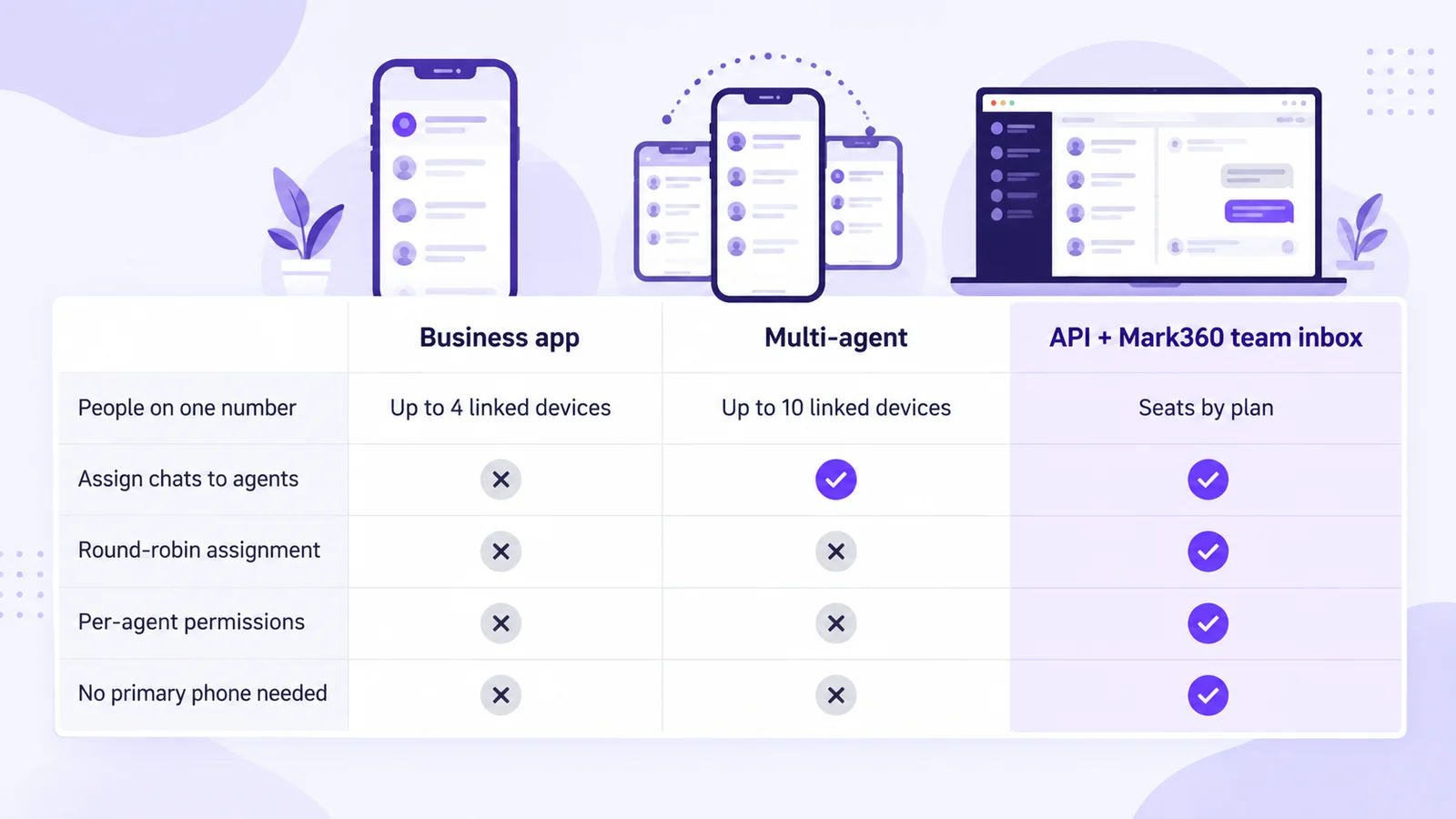
Here's how the three ways to share one number compare, as of 17 October 2026:
| WhatsApp Business app | Business app with multi-agent (Meta Verified or Meta One) | WhatsApp Business API with Mark360 team inbox | |
|---|---|---|---|
| People on one number | Primary phone plus up to 4 linked devices | Up to 10 linked devices | One login per agent; seats depend on your plan |
| Assign chats to agents | No | Yes | Yes, manually or round-robin |
| Round-robin assignment | No | No | Yes, within the assigned team |
| Per-agent permissions | No | No | Yes, about 50 modules, including View Unassigned Chats |
| No primary phone needed | No. Use the primary phone at least every 14 days | No. Use the primary phone at least every 14 days | Yes. Agents sign in to Mark360 |
| Broadcasts | Broadcast lists don't work on linked devices | Broadcast lists don't work on linked devices | Campaigns to opted-in contacts with approved templates |
"No" means the feature isn't listed in WhatsApp's Help Center pages for the app or multi-agent.
The app is fine for an owner and two or three helpers. Once you need more people, automatic distribution, or limits on what a new hire can see, you need the WhatsApp Business API through a provider. If you're still comparing providers, see how to choose a WhatsApp Business API provider.
How to set up a WhatsApp team inbox on one number
Here's the setup in Mark360. Most API team inboxes follow similar steps:
- Connect your number. Connect your WhatsApp Business number through Meta's official API. Mark360 never asks for your WhatsApp password, and you can start on the Free plan.
- Create teams. Add teams such as Sales, Support and Billing under Team Management.
- Add agents. Give each person their own login (name, email, mobile, password) and put them in a team.
- Set permissions. Switch on only the modules each agent needs. More on this below.
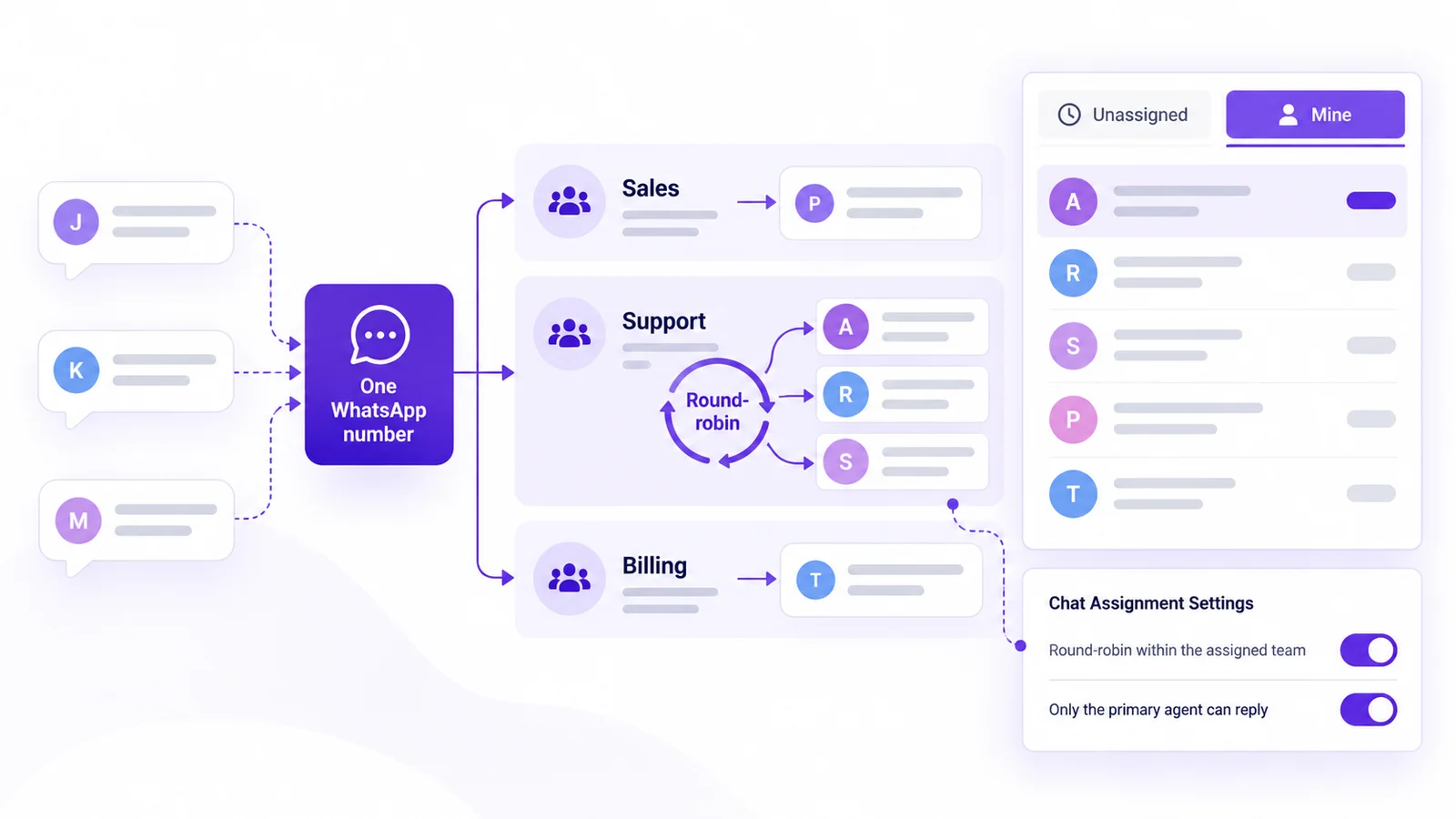
- Turn on routing. Enable round-robin so new chats spread across the team.
- Set working hours. Add open hours, breaks, holiday mode and an after-hours reply.
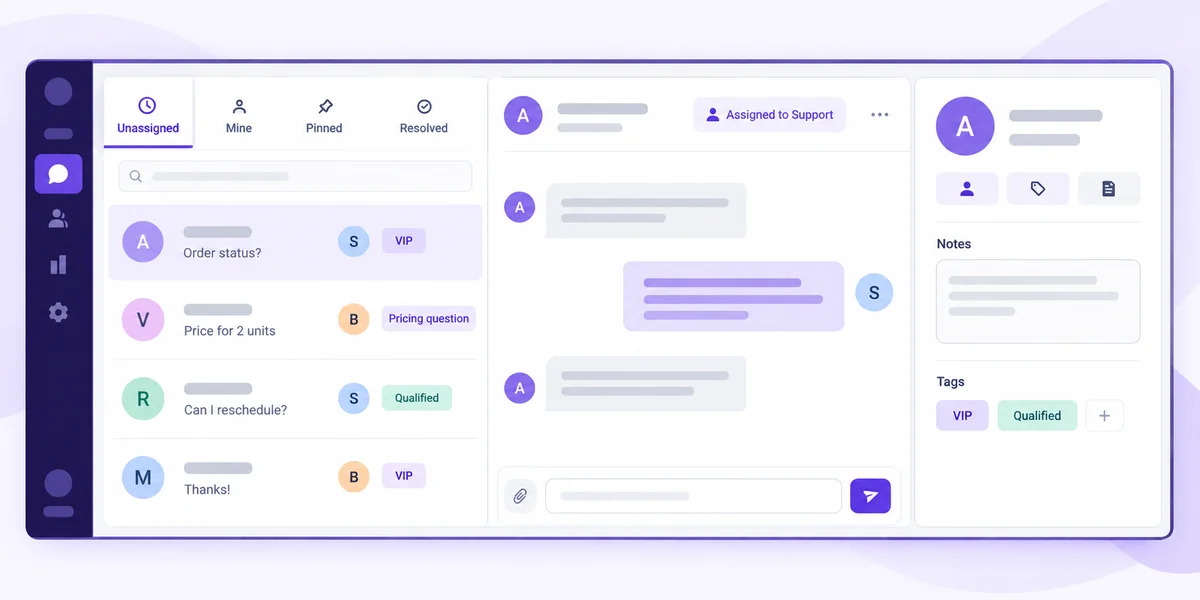
- Work the queue. Agents pick up chats from Unassigned, work their own in Mine, pin the urgent ones and mark finished chats Resolved.
Assignment rules: manual, round-robin and team rules
Assignment rules decide who owns a new chat. There are three common patterns:
- Manual claiming. Agents pick chats from Unassigned. This suits small teams, but chats wait when everyone is busy.
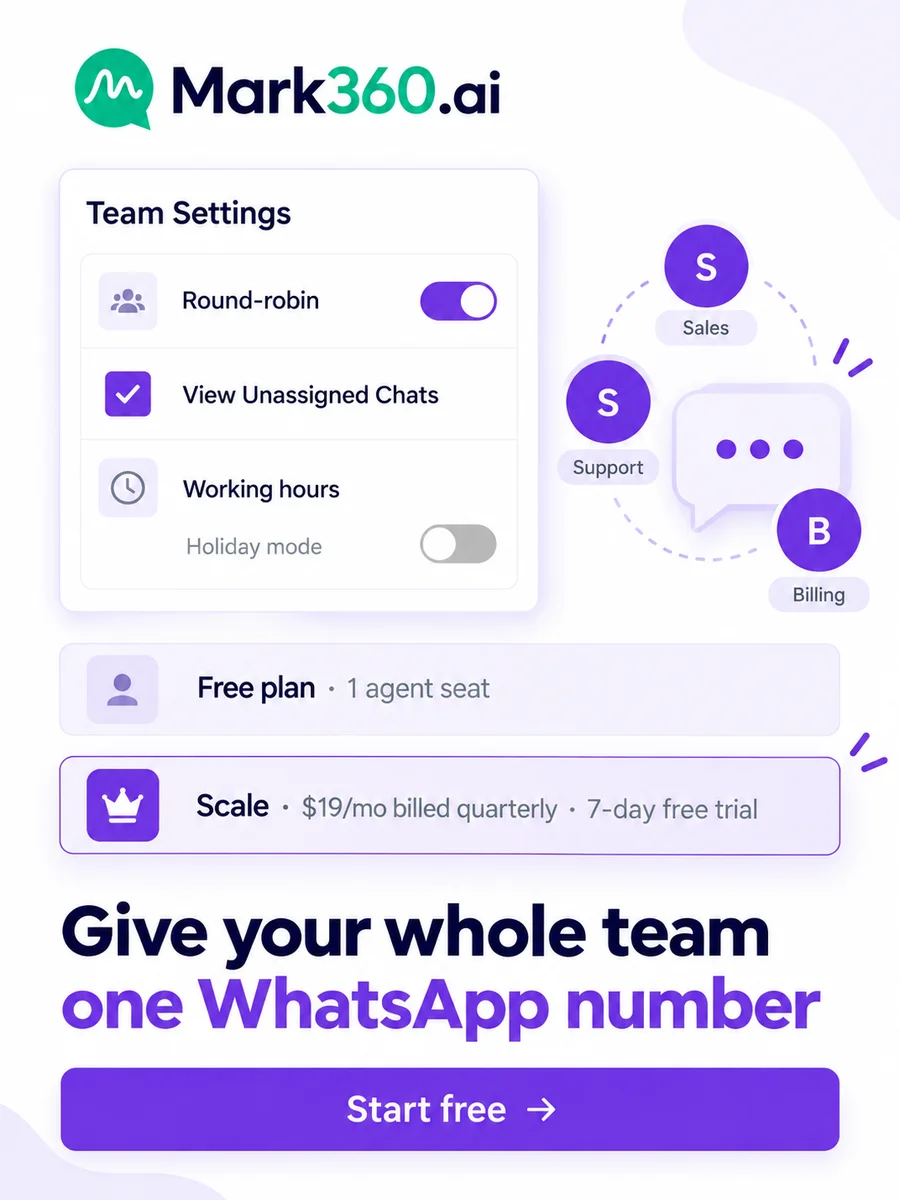
- Round-robin. New chats go to agents in turn. In Mark360, turn on "Assign newly opened chats in round robin manner within users of the assigned team" in Chat Behavior settings. This overrides manual assignment for new chats.
- Team rules. Decide whether everyone in a team can reply to a team chat. In Mark360, when this is off, teammates can view the chat but only the primary agent can reply. That stops two people answering at once.
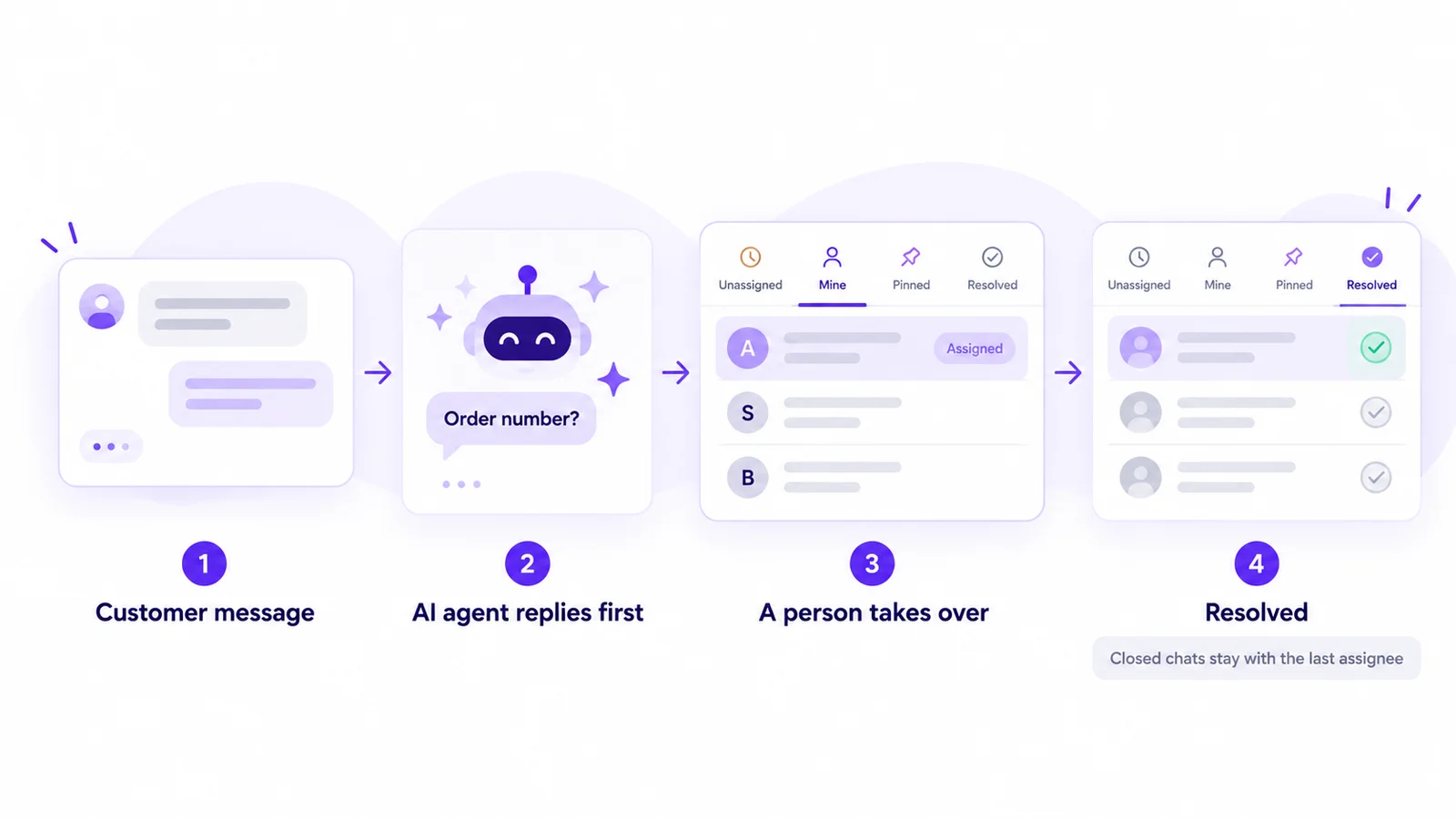
One more rule matters once a bot is involved. Mark360 can keep expired or closed chats away from the bot and leave them with the last assignee, so a returning customer reaches the person who helped them before.
Response time targets (SLAs) and the 24-hour window
A team inbox only helps if chats get answered quickly. Speed matters: in a study published in Harvard Business Review, companies that tried to contact a lead within an hour were nearly seven times as likely to qualify it as those that waited longer (HBR, 2011).
Set two targets: a first-response time during working hours, and a resolution time for each team. Then cover the gaps with automation. In Mark360 you can:
- send an automatic reply when nobody answers within a set number of minutes,
- send an out-of-office message after hours, with breaks and holiday mode,
- send a reply when an unresolved chat is close to 24 hours since the last message.
That last rule exists because of a WhatsApp limit. When a customer messages you, Meta opens a 24-hour customer service window. Inside it, agents can send free-form replies. Once it closes, the next message has to be an approved template. A chat that waits all day can turn a quick answer into a paid template.
Internal notes, tags and saved replies
Context is what lets one agent pick up another's chat without asking the customer to repeat themselves. Keep it in three places:
- Notes. Write down what was promised, such as "refund approved, send tracking Monday". In Mark360, notes live on the contact record along with custom fields.
- Tags. Label intent and stage ("pricing question", "VIP", "qualified") so anyone opening the chat knows what it's about. Mark360 lets you add tags to every contact.
- Saved replies. Keep approved answers in the Replies Library (text, images, video, audio, files and templates) so every agent gives the same answer.
To follow up on sales chats after the conversation, connect the inbox to a pipeline. Our guide to WhatsApp CRM in India covers lead stages and follow-ups.
Handoff from an AI agent to a human
The fastest team inbox lets software take the first reply. Then the human only joins when it's needed. A clean handoff looks like this:
- The AI agent answers first. A WhatsApp trigger on incoming messages passes the chat to an AI agent, such as the General Support Agent or Lead Qualification Agent from Mark360's agent templates.
- It collects the basics. Order number, city, budget or preferred date: whatever your team would ask first.
- A person takes over. The chat lands in the team inbox and goes to an agent by round-robin or manual assignment. The agent reads the thread and continues from there, without starting again with "How can I help you?"
- It stays with the human. With the Chat Behavior rule above, a closed chat isn't sent back to the bot when the customer writes again.
Hand off when the customer asks for a person, the question needs judgement (refunds, complaints, custom quotes), or the bot has failed twice. To plan the bot side, see our WhatsApp chatbot guide and the WhatsApp AI agent guide. For the same pattern across Instagram, read Instagram chatbot with a WhatsApp shared inbox.
Permissions: who sees which chats
When you share a number, you also share your customer list, so access should match the job. Mark360 sets permissions per agent across about 50 modules, such as Manage WhatsApp Chats, Manage Contacts, Manage Campaign and Manage Templates. View Unassigned Chats is its own permission.
A simple setup:
- New agents: WhatsApp chats only, no unassigned queue, so they see only chats routed to them.
- Team leads: chats plus View Unassigned Chats, contacts and the Replies Library.
- Admins: everything, including templates, campaigns, billing and API tokens.
Opt-in and opt-out keywords protect the shared list too. An opt-out keyword removes a contact from future campaigns, whoever was chatting with them.
What a WhatsApp team inbox costs
There are two parts: seats for your team and WhatsApp message charges.
- Seats: Mark360's Free plan is $0 and includes one agent seat. Other plans include a set number of seats, and you can buy more. Scale is $19 a month billed quarterly with a 7-day free trial, Scale+ is $99 a month, and Enterprise is custom. See pricing for each plan's limits.
- Messages: Since 1 October 2026, Meta gives every business phone number 1,000 free service messages a month. Because the whole team replies from one number, that pool is shared, not given per agent. After it runs out, Mark360 bills service messages like utility messages: ₹0.138 each in India. Marketing templates are ₹0.94.
For what you can run at zero cost, read what's actually free on the WhatsApp API.
Give your whole team one WhatsApp number in Mark360
Mark360 is an Official Meta Business Partner based in Surat, India, trusted by 100+ businesses. Connect your number once and your whole team replies from it with their own logins, round-robin routing, per-agent permissions, working hours and AI agents that answer first.
See the Mark360 team inbox, or start free and compare plans. Running support at scale? See Mark360 for customer support teams.