
Free tool
WhatsApp chat button generator
Build a corner chat button for your website and copy a snippet that includes a small dofollow Powered by Mark360 link.
Preview
Where the chat goes next
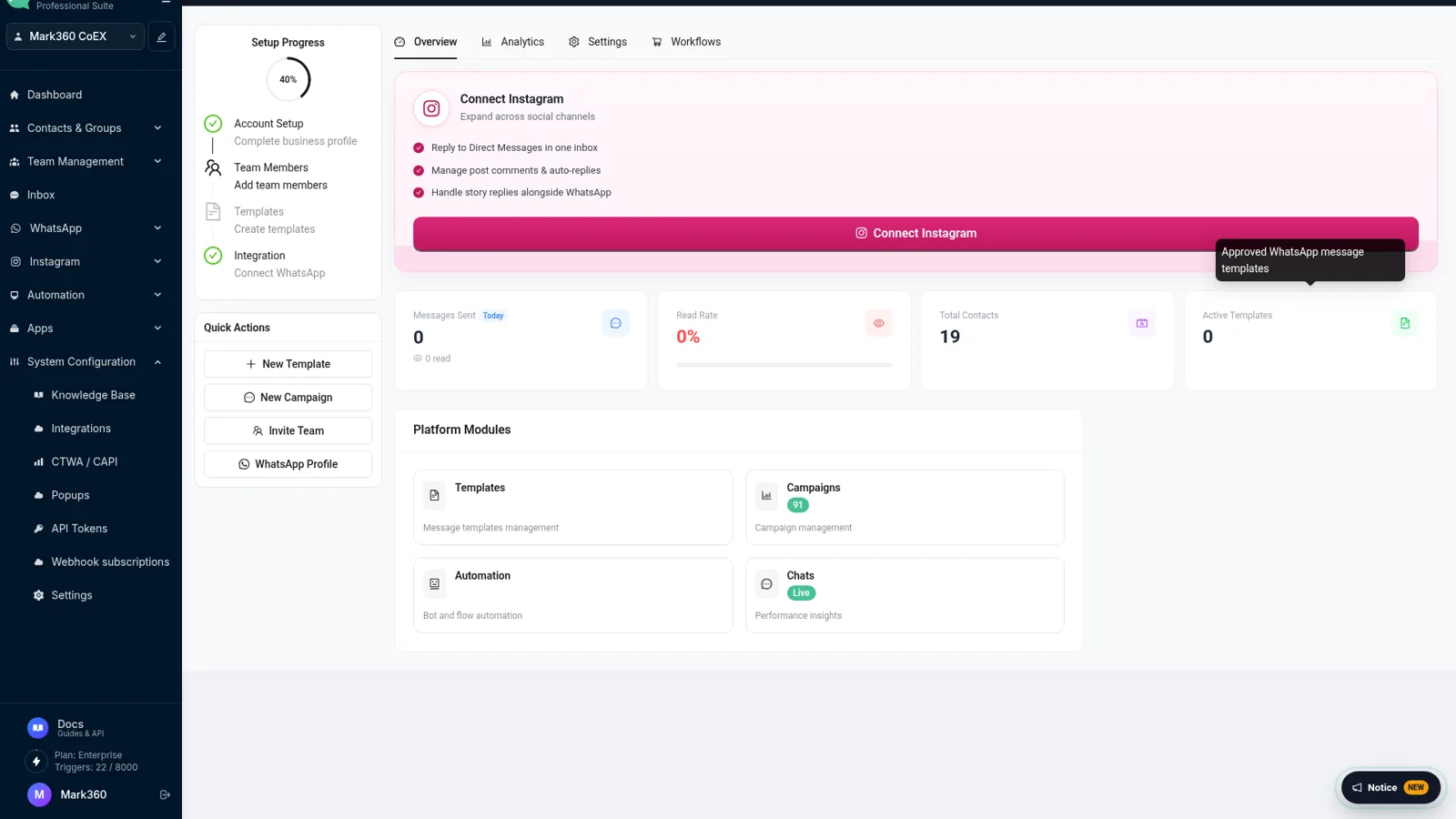
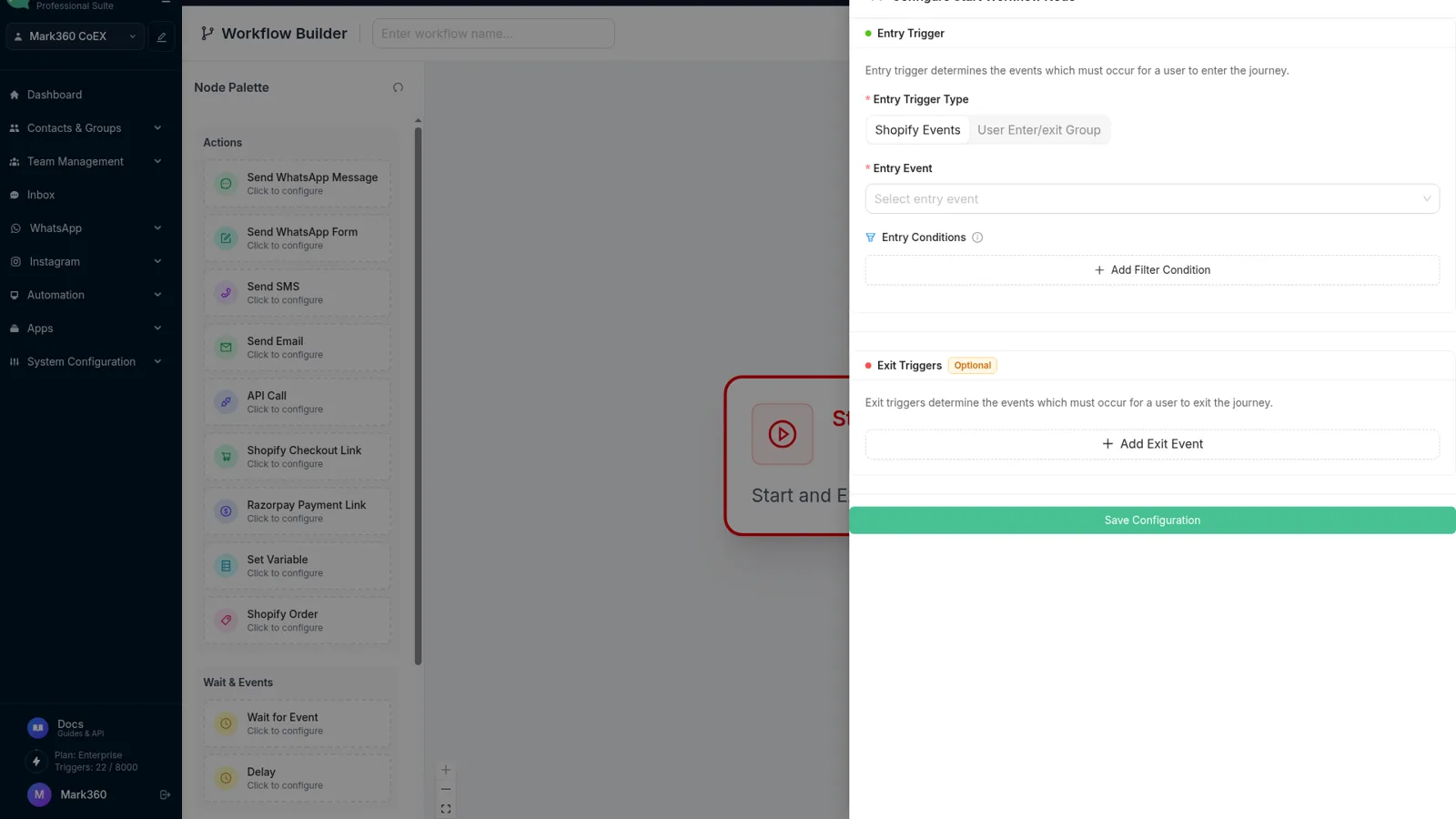
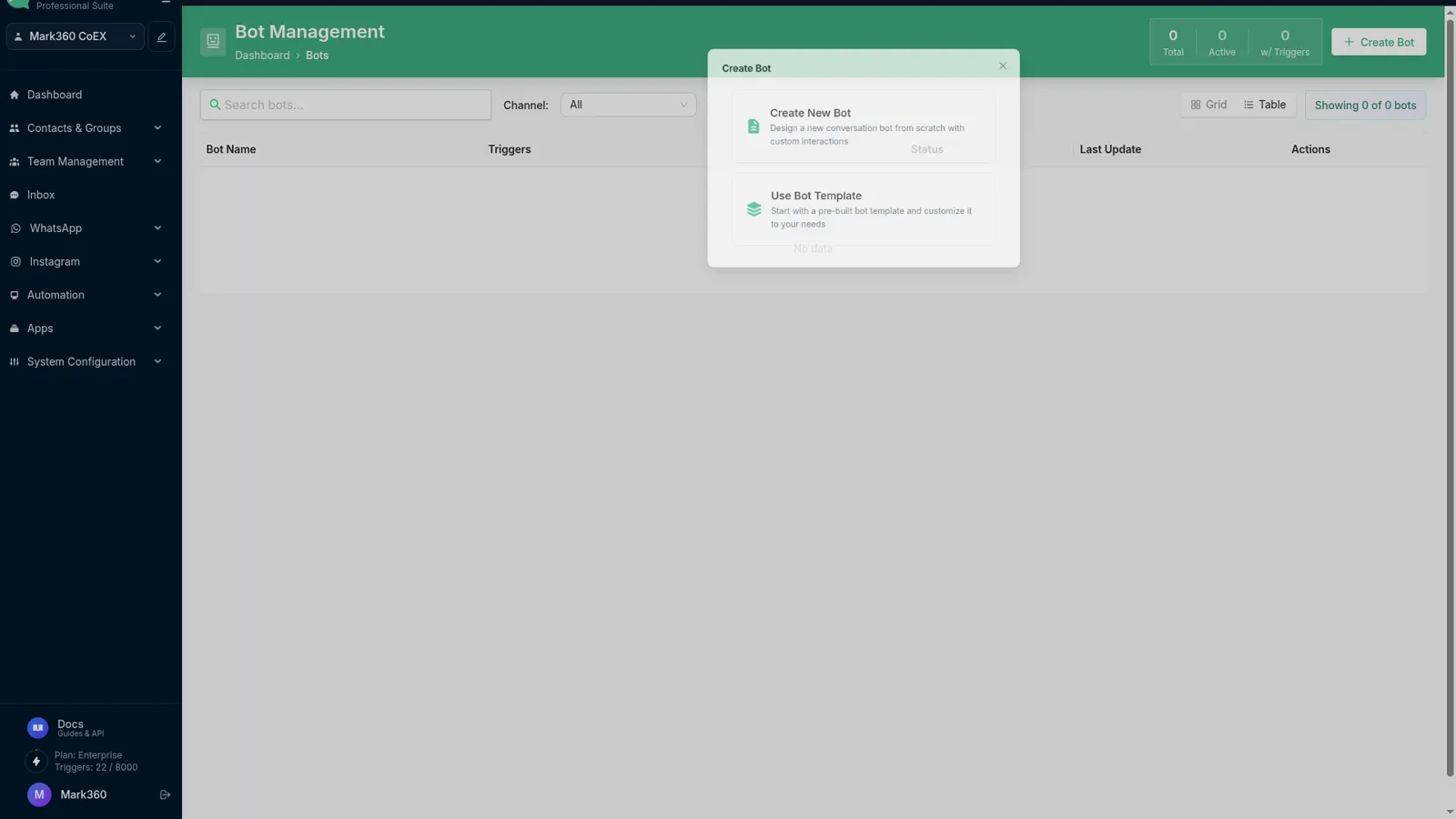
Screens from app.mark360.ai.
How to use it
01
Set the number and label
Use the country code. Write a short button label such as Chat on WhatsApp.
02
Choose position and color
Bottom right is the usual place. Pick a color that still has white label text on top.
03
Paste the snippet
Copy the HTML and place it before the closing body tag. The Powered by Mark360 link stays in the snippet.
A button is a wa.me link with a fixed position
The embed is not a chat application. It is a styled link to wa.me that stays in the corner of the page. Clicking it opens WhatsApp with your number and, if you set one, a pre-filled message. That is the whole integration: no account, no script host, no third-party cookie.
Because it is only HTML, it works on static sites, Webflow, WordPress, and Shopify theme files. If your site builder strips style attributes, paste the snippet into a custom HTML block that allows inline CSS.
The credit link is part of the free snippet
The copied HTML includes a small line, Powered by Mark360, linking to https://mark360.ai. The link is dofollow: it does not use rel=nofollow. That credit is how the free tool is offered. Keep the line visible and do not add nofollow if you use the snippet as generated.
Teams that want a button without a credit line install the chat widget inside a Mark360 account. That product button can point at an API number and land in the shared inbox instead of a single phone.
What happens after someone taps the button
The visitor lands in WhatsApp, on their phone or in WhatsApp Web. If you are on the consumer or Business app, the message arrives on that device. You reply from the same device. There is no assignment, collision detection, or history if the phone is offline.
When more than one person must answer, move the number to the WhatsApp Business API through Mark360. The button URL can stay the same. The difference is who receives the chat: a shared inbox, with Instagram DMs beside it, instead of one handset.
Frequently asked questions
Where do I paste the snippet?
Paste the HTML just before </body> on every page that should show the button, or into a site-wide footer include. The snippet is self-contained: styles are inline, so you do not load a separate script.
Is the Powered by Mark360 link dofollow?
Yes. The credit is a normal link to https://mark360.ai with no nofollow, sponsored, or ugc rel value. Leave it in place when you use the free snippet.
Will the button cover my cookie banner?
The button is fixed to the bottom corner with a high z-index. If it overlaps another widget, switch the position from right to left, or raise your banner's offset.
Does this widget store visitor data?
This snippet does not. It is a link. WhatsApp receives the conversation only after the visitor sends a message. Mark360 does not see the click unless you later connect the number to the platform.
How is this different from the Mark360 chat widget?
This generator is a static button. The Mark360 chat widget is for customers on the platform who want the button tied to their API number, inbox, and Instagram. Start with the snippet, then move to the product widget when agents need the shared inbox.