
Free tool
WhatsApp text formatter
Add bold, italic, strikethrough, and monospace the way WhatsApp understands them, and preview the bubble before you copy.
WhatsApp formatting
Bold, italic, strike, and mono render in the chat the same way the formatter shows them.
- Bold: *bold*
- Italic: _italic_
- Strike: ~strike~
- Monospace: ```code```
Chat preview
Hello team, this is urgent old price SKU-14
now
WhatsApp applies one style per span. Markers need to sit against the words, with no space inside the markers.
Where the chat goes next
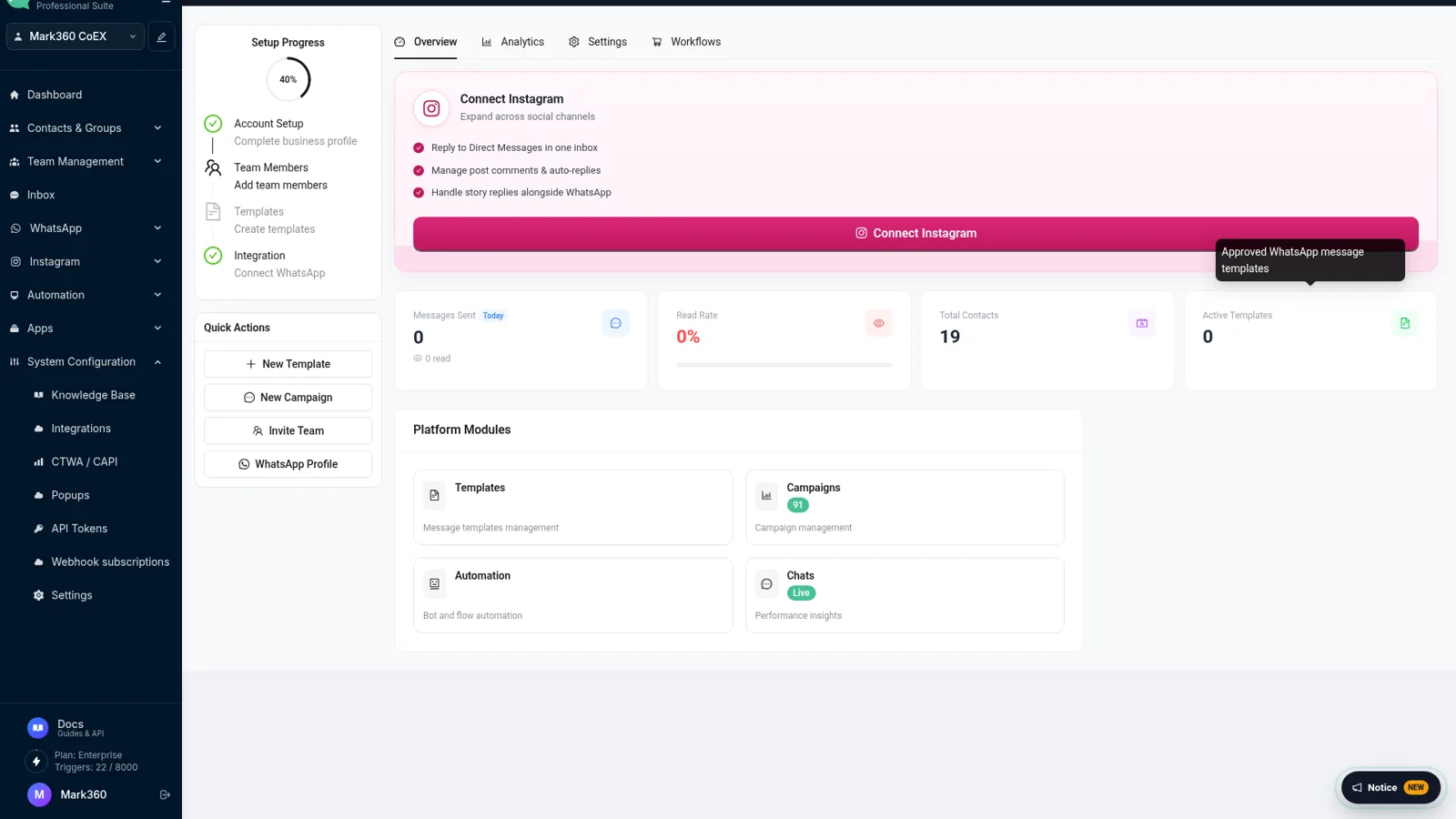
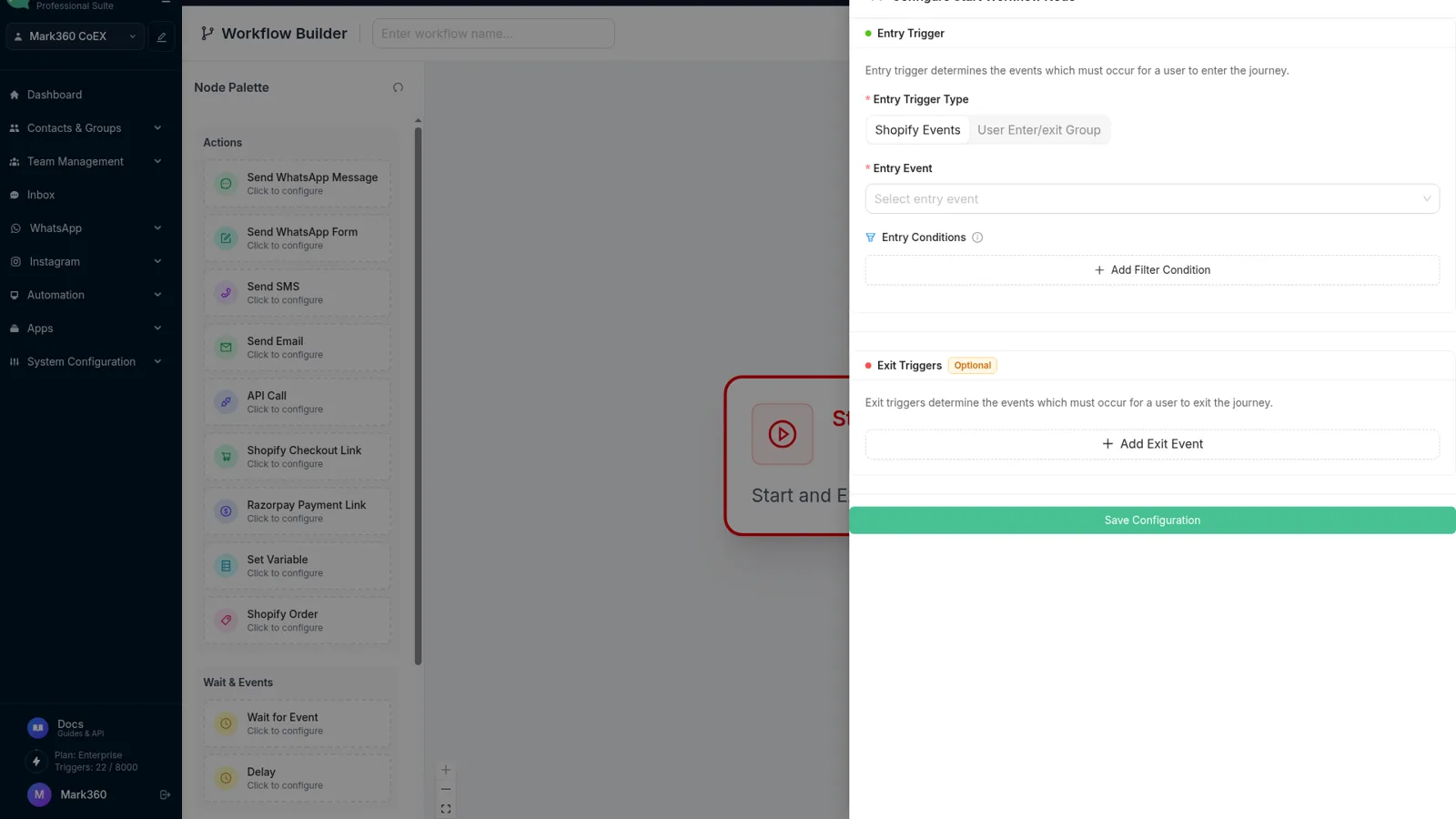
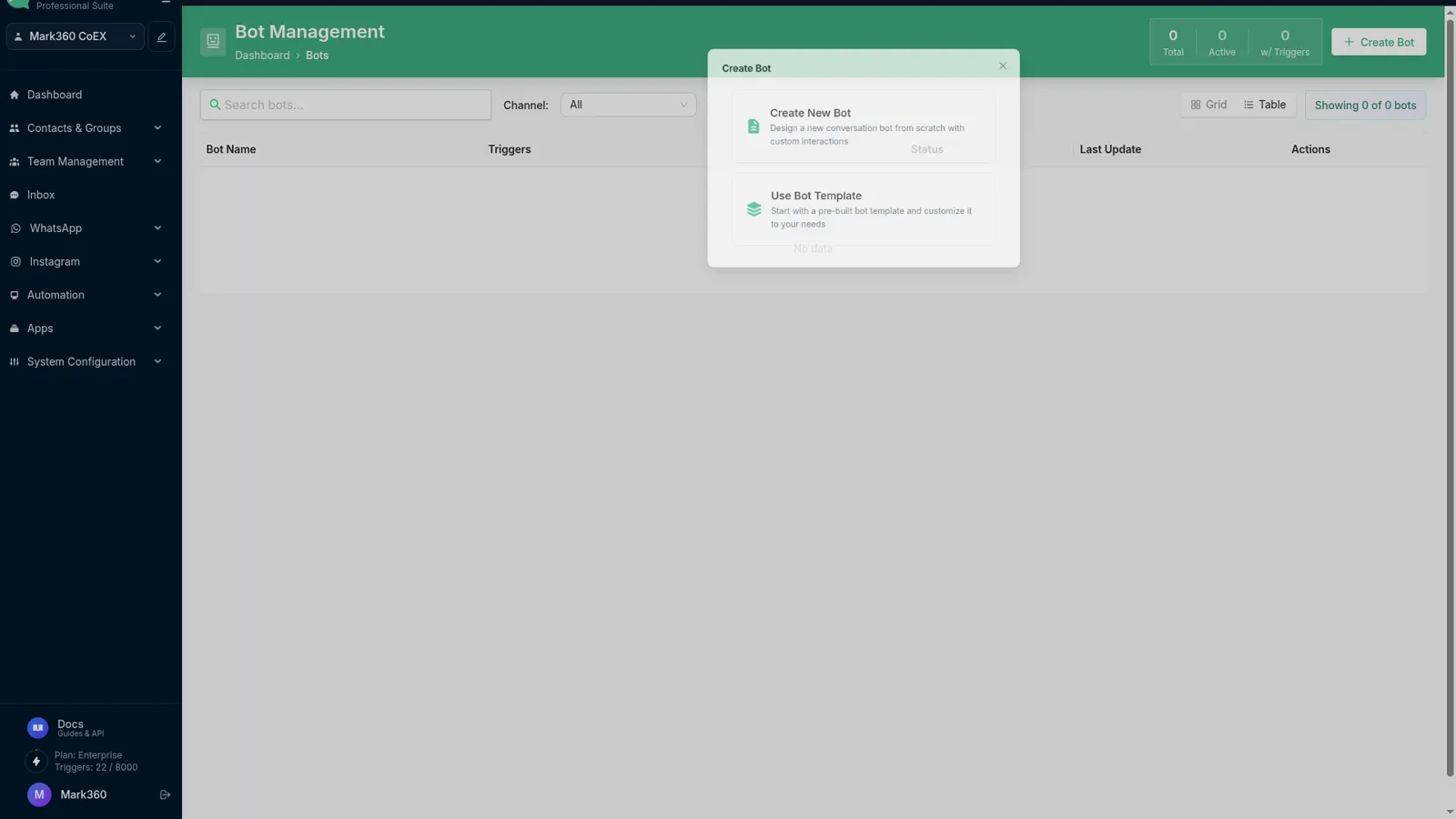
Screens from app.mark360.ai.
How to use it
01
Write the message
Type the text you plan to send, or paste a draft from a doc.
02
Apply a style
Select words and choose bold, italic, strikethrough, or monospace. The tool inserts WhatsApp's markers.
03
Check the preview
The green bubble shows how WhatsApp will render the markers. Copy the raw text, not a screenshot.
The four styles WhatsApp actually renders
WhatsApp does not use HTML. A message that looks bold in Google Docs becomes plain text when you paste it into a chat. The app only recognizes four inline markers: asterisks for bold, underscores for italic, tildes for strikethrough, and triple backticks for monospace.
This formatter inserts those markers and shows a chat-style preview so you can see the result before you send. Copy the text with the markers still in it. If you copy from the preview bubble, you will lose the markers and the style will not survive.
Where formatting helps, and where it hurts
Bold is useful for a price, a date, or the one action you want. Italic works for a short aside. Strikethrough is the honest way to show an old price next to a new one. Monospace is for order IDs, OTPs, and SKUs that people need to read character by character.
A message that is entirely bold is harder to scan than one plain sentence with a single bold phrase. Template messages that go through Meta approval should stay even simpler: reviewers reject copy that looks like spam, and heavy formatting is a common tell.
Formatting is not a substitute for a template
You can style a reply inside the 24-hour customer-care window any way WhatsApp allows. Once that window closes, a business on the API has to send an approved template. Those templates have variables for the name, order number, and amount. The styling you test here is for the chat itself.
If the message is a broadcast to many people, write it in the formatter, then move the approved version into Mark360. The shared inbox keeps the replies, which a personal phone will not do once the volume grows.
Frequently asked questions
Which formatting does WhatsApp support?
WhatsApp supports bold with asterisks (*text*), italic with underscores (_text_), strikethrough with tildes (~text~), and monospace with three backticks (```text```). There is no underline, font size, or text color in a normal chat.
Why does my bold not render?
The asterisks have to touch the word. * text * with spaces inside the markers is sent as plain text. The style also cannot cross a line break for bold, italic, or strike.
Can I combine bold and italic?
WhatsApp allows nested markers in many clients, such as *_text_*, but support is inconsistent. This preview applies one style per span so you can see the safe version.
Does formatting work in template messages?
Utility and marketing templates on the WhatsApp Business API have their own formatting rules, and some styles are stripped during approval. Preview the chat version here, then check the template in WhatsApp Manager before you submit it.
Will this change the message I already sent?
No. Formatting is applied when the message is composed. Copy the marked-up text into WhatsApp, or into a Mark360 broadcast draft, and send it from there.