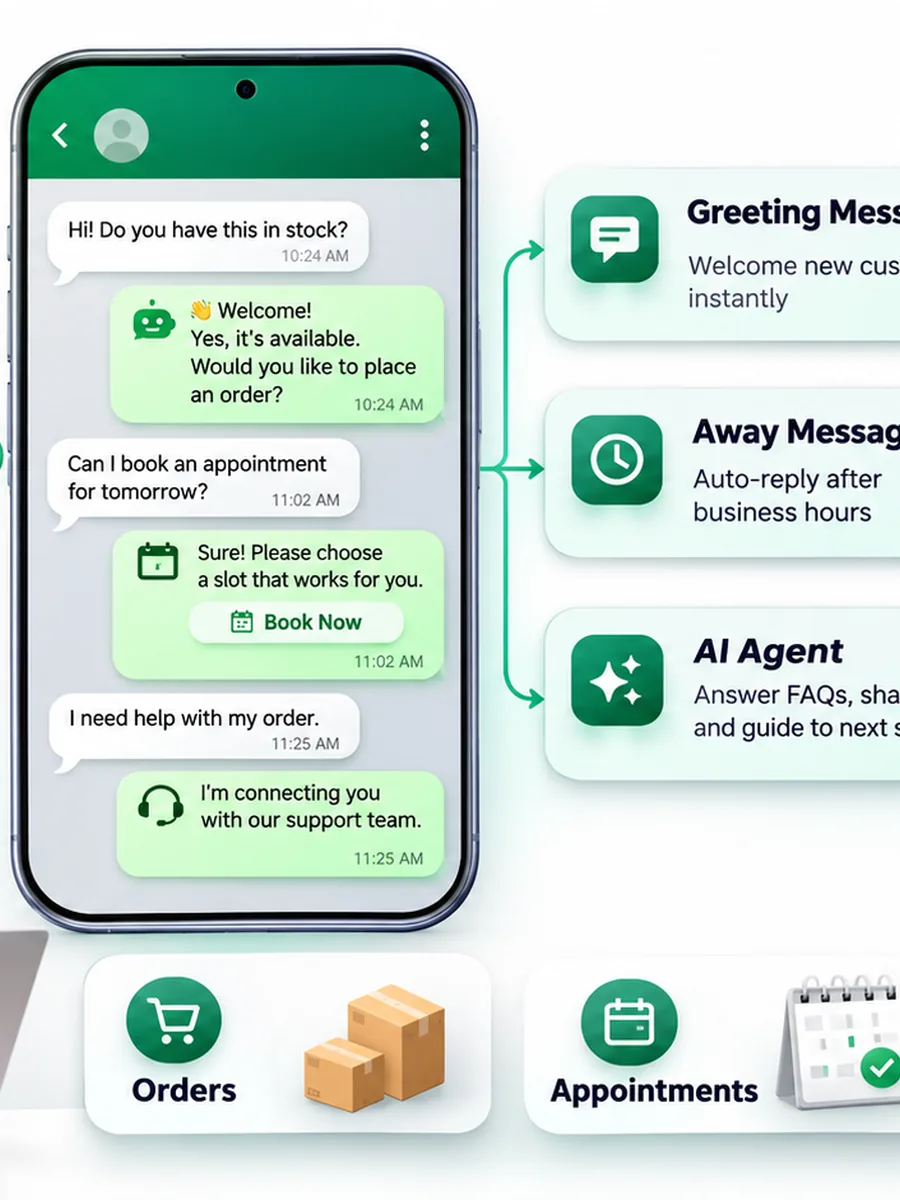
If customers message your business on WhatsApp while you are sleeping, serving another customer, attending a meeting or handling orders, an unanswered message can become a missed opportunity. WhatsApp Business auto reply helps you acknowledge incoming messages automatically, set expectations about response times and make sure customers know what to do next.
The simplest option is the free WhatsApp Business App. It provides greeting messages, away messages and quick replies. These features are useful for small businesses, but they have limitations: the phone needs an active internet connection for automatic greetings and away messages, quick replies require manual selection, and the basic app does not provide a complete multi-agent automation system.
When your business needs keyword-based routing, shared team access, order lookups, automated follow-ups or AI conversations, WhatsApp Business Platform (Cloud API) combined with an automation platform becomes a more suitable option.
This guide explains how to configure each option, when to upgrade, what Meta's 24-hour customer service window means, and how to use 40 ready-to-edit WhatsApp auto reply message samples for Indian businesses.
What Is WhatsApp Business Auto Reply?
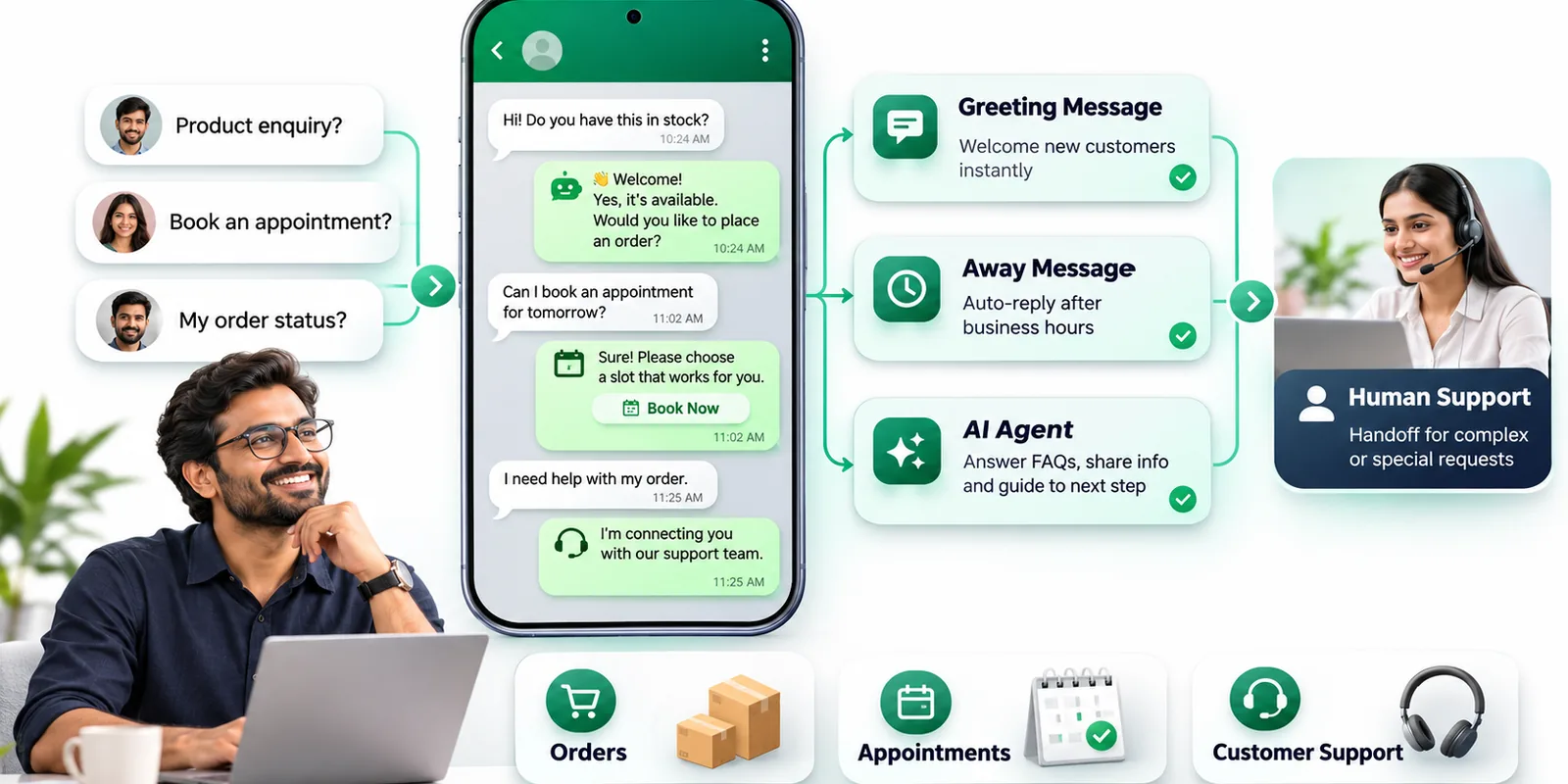
WhatsApp Business auto reply is an automatic response sent to a customer after they contact a business through WhatsApp. Depending on the technology being used, the response may be a simple greeting, an after-hours notification, a predefined answer, a rule-based workflow or an AI-generated conversation.
For example, a customer messages a clothing store asking, 'Is my order shipped?' The business can automatically acknowledge the message and provide the next step. With a basic app, this might be a fixed acknowledgement. With an integrated API and order system, automation can retrieve the actual order status and return a personalised answer.
Simple definition: WhatsApp auto reply is the process of acknowledging or answering customer messages automatically, without requiring a staff member to manually type every initial response.
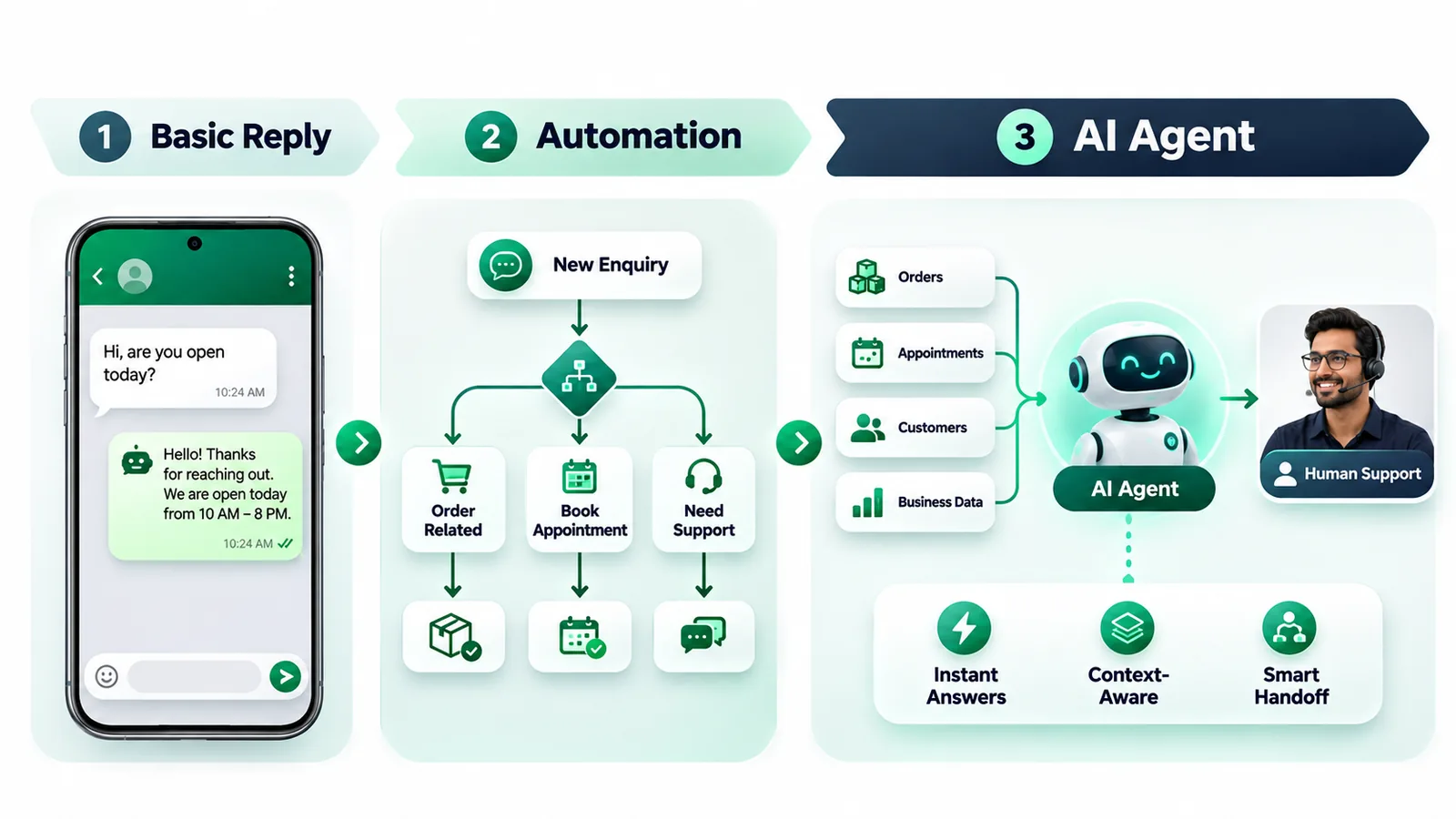
Three types of automatic replies
- Basic automatic messages: Greeting and away messages sent by the WhatsApp Business App.
- Rule-based automation: Responses triggered by selected keywords, buttons, customer choices or workflow conditions through a supported business messaging platform.
- AI-powered conversations: An AI agent understands customer intent, retrieves relevant information, responds in natural language and transfers conversations to a human when required.
The right choice depends on message volume, operating hours, team size, customer expectations and the level of automation your business actually needs.
How to Set Up WhatsApp Business Auto Reply Using the Free App
If you are a freelancer, local shop, salon, consultant or small business owner, start with the WhatsApp Business App. You do not need to purchase an automation platform just to send a welcome message or tell customers that your business is closed.
Download and configure the official WhatsApp Business App, complete your business profile and open its Tools tab. The instructions below follow the current Help Center navigation. Some older tutorials still show Settings followed by Business tools. If your app displays that older menu, update it before following the current steps.
1. Set up a WhatsApp greeting message
A greeting message welcomes a customer when they first message your business. WhatsApp also sends it when that customer messages you after 14 days of inactivity in that chat. It is useful for acknowledging new enquiries and asking customers what they need.
Follow these steps:
- Open WhatsApp Business.
- Go to the Tools tab.
- Tap Greeting message.
- Turn on Send greeting message.
- Tap the message field and edit your greeting.
- Tap Recipients and choose the contacts who should receive it.
- Tap Save.
WhatsApp provides recipient choices such as Everyone, Everyone not in address book, Everyone except selected contacts and Only send to selected contacts. The exact label for excluding saved contacts can differ between iPhone and Android.
Important: Your device must have an active internet connection for greeting messages to be sent. A greeting is not a message that fires every time the same customer sends another message. The first-message and 14-day inactivity conditions matter.
Read the official WhatsApp greeting messages guide for the current instructions.
2. Configure a WhatsApp away message
An away message tells customers that your business is unavailable or that the team will respond later. Unlike a greeting message, an away message is based on the schedule you configure.
To configure it:
- Open the Tools tab in WhatsApp Business.
- Tap Away message.
- Turn on Send away message.
- Edit the message you want customers to receive.
- Tap Schedule.
- Choose Always send, Custom schedule or Outside of business hours.
- Open Recipients and select the customers who should receive the message.
- Save your settings.
The three scheduling options serve different purposes:
- Always send: Send the configured away message whenever the away-message feature is active.
- Custom schedule: Send it during a specific time period, such as a planned closure or temporary break.
- Outside of business hours: Send it outside the business hours configured in your business profile. This option requires business hours to be set.
Your device must have an active internet connection for away messages to be delivered. Review the official WhatsApp away messages guide before configuring the feature.
3. Set your WhatsApp Business operating hours
If you want away messages to work outside normal operating hours, configure your business hours first.
- Open the WhatsApp Business Tools tab.
- Open Profile.
- Find Business hours.
- Choose Open for selected hours, Always open or Appointments only, depending on the options available to your account.
- Set the weekly schedule and save.
For an Indian business, a typical schedule might be Monday to Saturday, 10 AM to 7 PM, with Sunday closed. Use the hours customers can actually reach your team, rather than publishing ideal timings that are rarely followed.
One practical limitation is that the weekly business-hours screen does not provide a dedicated holiday exception for every special closure. If your shop closes for a weekday festival, use a Custom schedule for the relevant away-message period and switch back to your normal schedule afterwards.
4. Use quick replies for frequently asked questions
Quick replies are useful, but they are not the same as automatic replies. They store frequently used messages so an agent can insert them into a conversation using a shortcut. A person still chooses and sends the response.
To create one:
- Open Tools and select Quick replies.
- Tap the add button.
- Enter the message you frequently send.
- Choose a shortcut, such as /shipping or /hours.
- Save the quick reply.
When replying to a customer, type a forward slash in the message field and select the appropriate saved reply. Review the text before sending it, particularly if it contains a customer's name, order number or delivery estimate.
WhatsApp currently documents a maximum of 50 stored quick replies. Some media capabilities also differ between mobile and Web/Desktop. See the official quick replies guide.
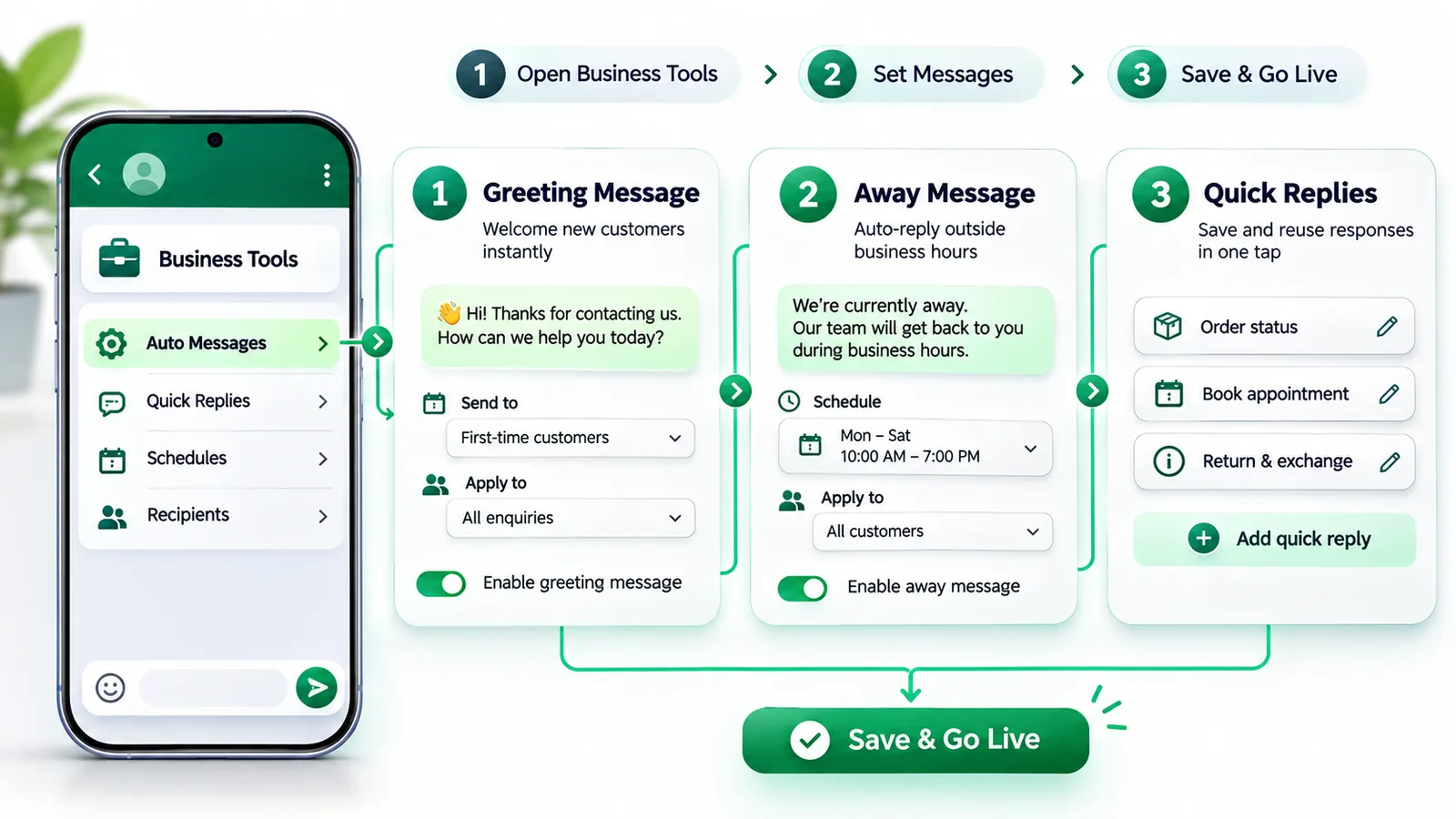
Greeting Message vs Away Message vs Quick Reply
These three features are often confused because all of them help businesses respond faster. However, they solve different communication problems.
| Feature | Greeting message | Away message | Quick reply |
|---|---|---|---|
| Primary purpose | Welcome customers | Communicate unavailability | Reuse common answers |
| Automatic sending | Yes, when conditions apply | Yes, when schedule applies | No, agent sends it |
| Typical use | New enquiry | After business hours | Price, address, policies |
| Trigger | First message or 14 days of inactivity | Configured schedule | Agent selects shortcut |
| Internet requirement | Device must be online | Device must be online | Requires a working messaging connection |
A useful configuration combines all three. The greeting welcomes a new customer, the away message manages expectations outside working hours, and quick replies help the team answer common questions during the day.
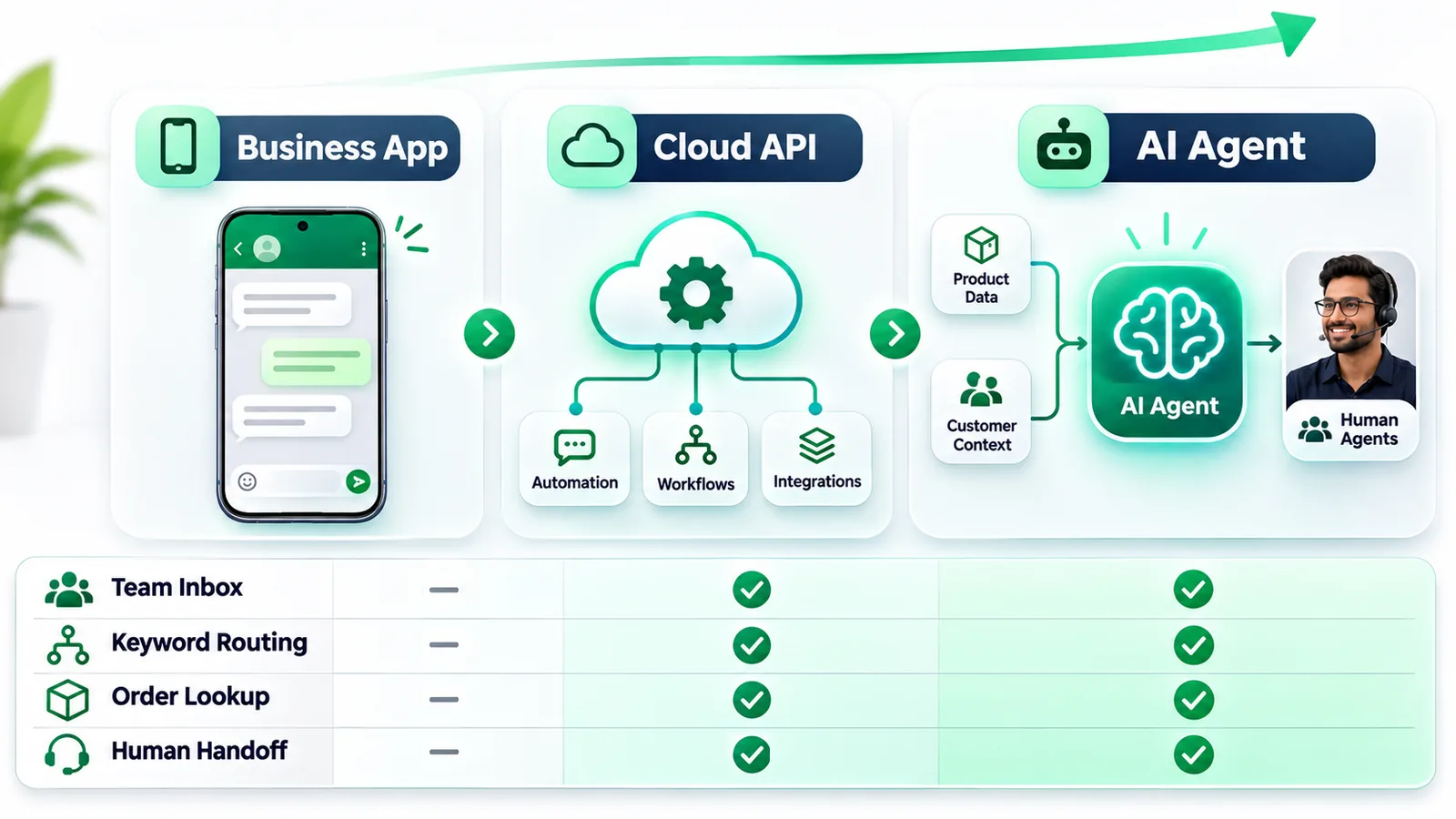
WhatsApp Business App vs Cloud API vs AI Agent
The free Business App is a sensible starting point, but its built-in automation is intentionally limited. If you want automatic responses based on order information, customer intent, product availability or team assignment, you need a more capable setup.
| Capability | Business App | Cloud API with automation | AI agent with API |
|---|---|---|---|
| Greeting and away messages | Yes | Configured workflows | Configured workflows |
| Saved quick replies | Yes | Platform-dependent | Platform-dependent |
| Keyword-based routing | Limited manual handling | Yes | Yes |
| Multiple agents in a shared inbox | Not a complete team inbox | Yes, through a connected platform | Yes, through a connected platform |
| Automated order lookup | No native workflow | With integration | With integration and tools |
| Natural-language understanding | No general-purpose AI agent | Requires an AI integration | Yes |
| Human handoff | Manual response | Workflow-based | Can be built into the conversation |
| Approved template messaging | Not the API template system | Yes, subject to Meta rules | Yes, subject to Meta rules |
| Best for | Solo operators and small shops | Growing teams and structured automation | Businesses with complex or high-volume enquiries |
There is an important distinction between the WhatsApp Business App and WhatsApp Business Platform. The Platform, commonly accessed through the Cloud API, is designed for business messaging integrations. It is not simply a more advanced settings screen inside the free app.
Read our detailed comparison of WhatsApp Cloud API vs Business App vs BSP in India and explore the WhatsApp API capabilities before choosing an upgrade.
When Should Your Business Move Beyond the WhatsApp Business App?
You do not need an API just because your business receives WhatsApp messages. Upgrade when the limitations of the current setup create operational problems or prevent you from delivering the experience customers expect.
1. Your phone needs to remain connected
The built-in greeting and away messages depend on an active internet connection on the device. If your business relies on a single phone that is frequently switched off, disconnected or unattended, the basic setup may not provide the reliability you need.
2. Multiple people need to answer the same number
A growing business may have separate sales, support, delivery and accounts teams. Sharing one device or asking agents to coordinate manually makes it difficult to see who owns a conversation, what was promised and whether a customer has received a response.
A shared WhatsApp team inbox can bring customer conversations into one workspace, assign ownership and help managers monitor unresolved chats.
3. You need automatic keyword or intent routing
Consider a business receiving messages such as 'price', 'delivery', 'refund', 'book appointment' and 'speak to sales'. A static greeting cannot intelligently handle each intent. API-based automation can identify the selected option or match supported keywords and route the conversation into the relevant workflow.
4. You want to retrieve live customer information
A customer asking for an order update does not want a generic acknowledgement. They want to know whether the order has been packed, shipped or delivered. An API integration can connect WhatsApp to an order management system, subject to the data and permissions made available by that system.
5. You want follow-ups and campaigns
Businesses may need appointment reminders, order updates, service notifications or opted-in promotional communication. These workflows need to respect the applicable WhatsApp messaging rules, consent requirements and template requirements.
For the broader upgrade decision, see our WhatsApp chatbot for business guide.
How WhatsApp Cloud API Auto Replies Work
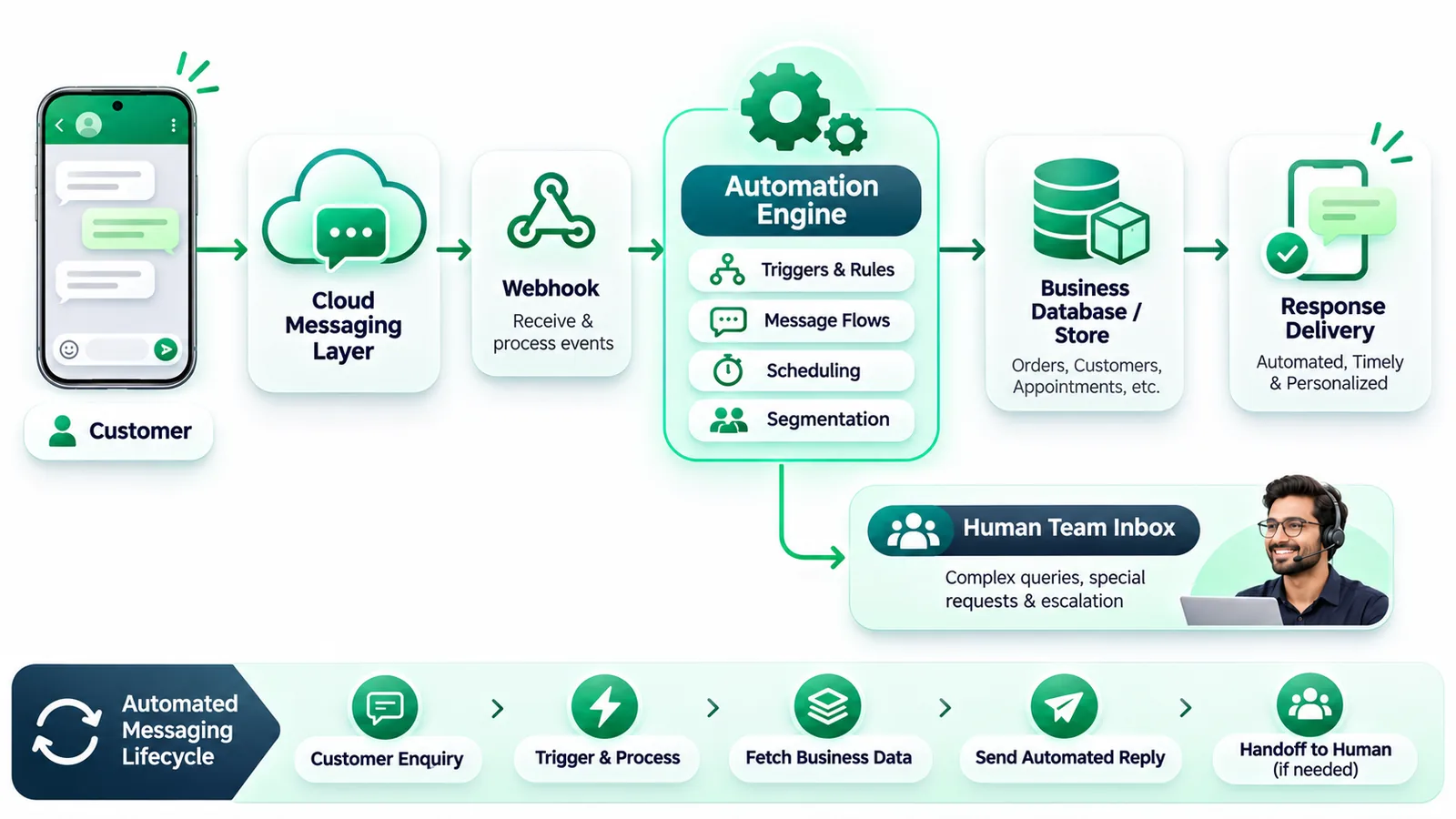
WhatsApp Cloud API automation works differently from the built-in auto reply feature. A customer sends a message to your business number. Meta delivers the incoming message event to your connected application through a webhook. Your application processes the event, decides what response is appropriate and sends a reply through the supported messaging API.
A simplified architecture looks like this:
- Customer message: A customer sends a WhatsApp message.
- Webhook event: The connected application receives the incoming message event.
- Conversation identification: The system identifies the customer and existing conversation context.
- Automation decision: A rule, workflow or AI agent determines the next action.
- Information retrieval: If needed, the system retrieves product, order, booking or support information from an authorised integration.
- Response: The system sends an eligible response through the WhatsApp Business Platform.
- Human handoff: If the request needs a person, the conversation is assigned to an agent in the shared inbox.
This architecture can support more than a welcome message. It can answer product questions, collect lead details, provide order updates and direct customers to the correct team.
What happens inside a rule-based workflow?
Imagine a customer sends 'RETURN' after receiving a damaged product. The workflow can acknowledge the request, ask for the order ID, collect the required information and route the case to the returns team. A well-designed workflow should explain what happens next rather than repeatedly sending generic messages.
For more complex automation, an AI agent can understand variations such as 'I got the wrong size', 'Need to exchange this' or 'The product is damaged'. The system can classify the request and start the appropriate workflow instead of requiring the customer to remember a particular keyword.
What Does the 24-Hour WhatsApp Customer Service Window Mean?
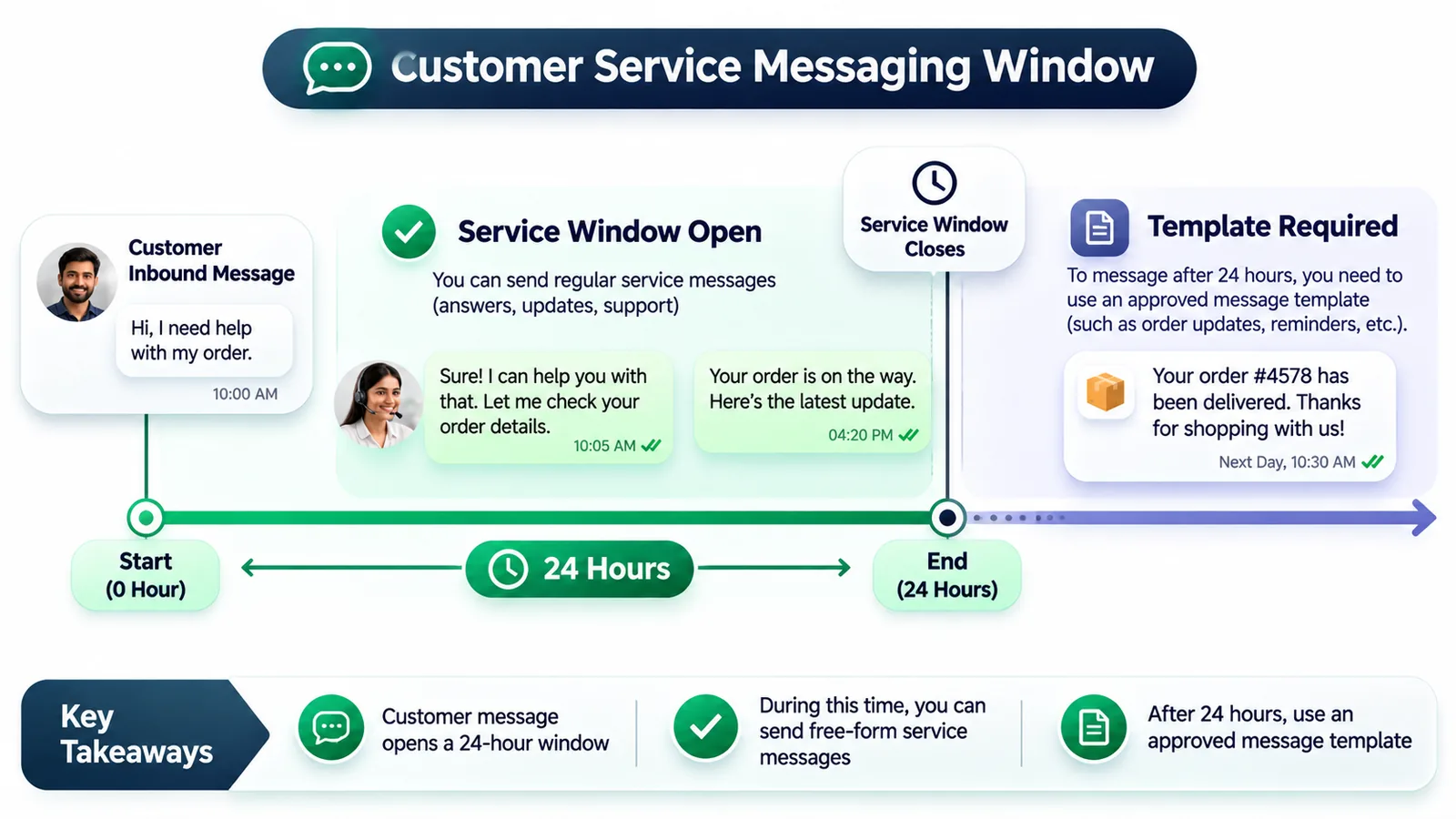
The 24-hour customer service window is one of the most important concepts to understand before implementing WhatsApp API auto replies.
Broadly, when a customer messages your business, a customer service window opens. During the applicable window, a business can respond using eligible free-form service messages. Once the window closes, a business-initiated message generally needs an approved template that meets the relevant Meta requirements and category rules.
This means your automation cannot treat every incoming conversation as permission to send any message at any future time. A customer asking for product information today does not automatically authorise unlimited promotional messages next week.
Practical examples
- Customer asks about delivery: An eligible response can be sent within the open service window.
- Customer returns after the window: A business-initiated response must follow the applicable template and messaging rules.
- Promotional follow-up: Use the appropriate approved marketing template and ensure the required customer consent and policy compliance.
- Order or appointment update: Use the appropriate communication category and approved template where required.
Do not assume that a message is free or chargeable solely because it is called an auto reply. Actual charges depend on Meta's current pricing model, message category, destination market and applicable rules. Check the latest official commercial terms before estimating campaign costs.
For India-focused pricing context, read WhatsApp service message pricing: October 1, 2026. Also review our WhatsApp message templates guide before designing outbound workflows.
Why an AI Agent Is More Useful Than a Basic Autoresponder
A traditional autoresponder WhatsApp setup sends a fixed response when a configured condition is met. It is useful for simple acknowledgements, but it does not necessarily understand what a customer is asking.
For example, consider these three messages:
- 'Where is my order?'
- 'My order has not arrived yet.'
- 'Can you check whether order #M360245 has shipped?'
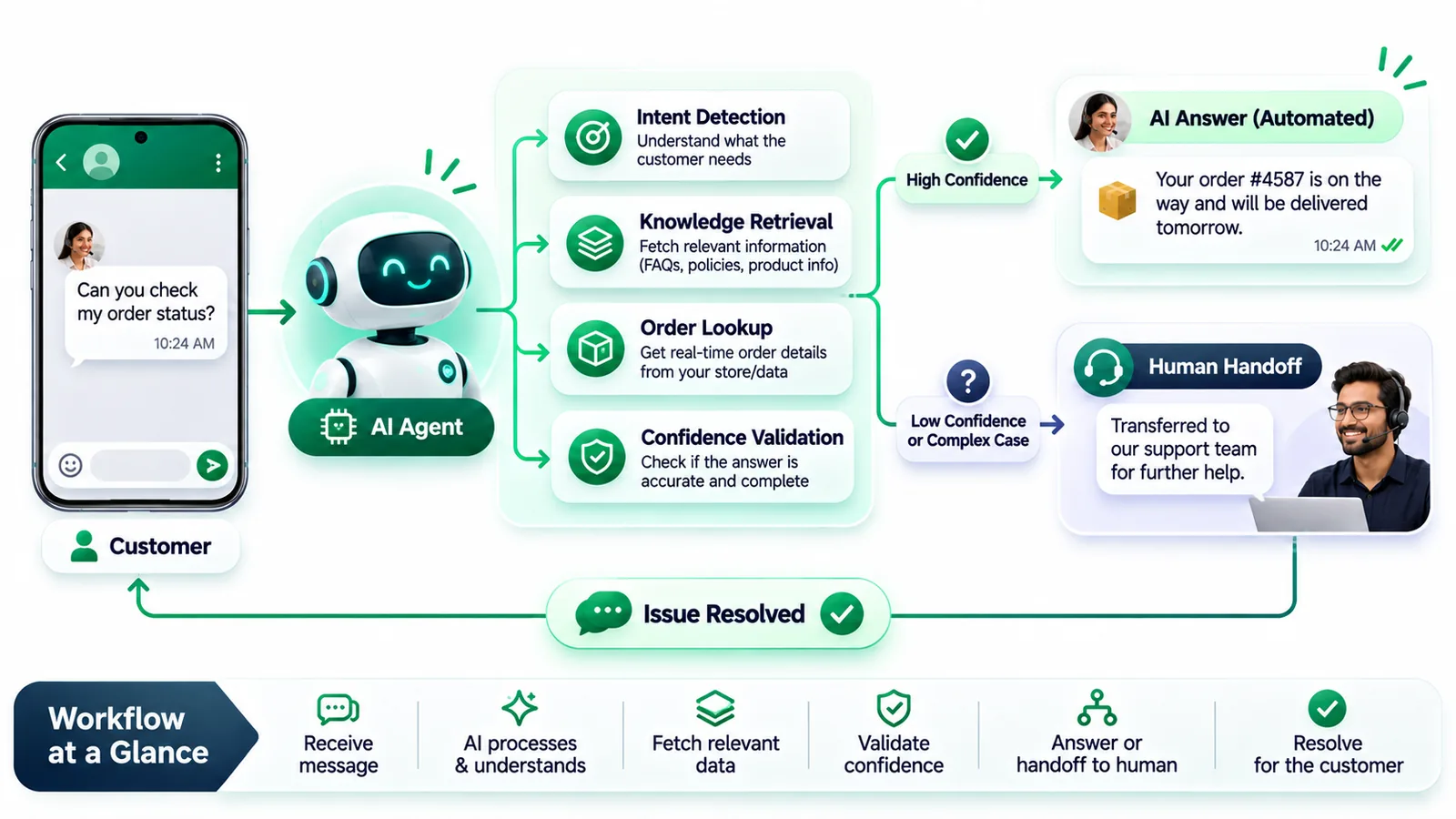
A basic autoresponder might send the same generic response to all three. An AI agent can interpret the intent, request missing information, use an authorised order lookup tool and return a relevant result.
What a useful WhatsApp AI agent should do
- Understand intent: Identify whether a customer needs sales, support, delivery, returns or booking assistance.
- Use business knowledge: Answer questions using approved product details, policies and business documentation.
- Remember conversation context: Avoid asking for information that the customer has already provided in the current supported context.
- Call authorised tools: Retrieve order status, check product information or initiate an available business workflow.
- Recognise uncertainty: Avoid inventing delivery dates, stock levels, refund decisions or policy exceptions.
- Transfer to a person: Hand over complaints, complex requests, sensitive cases or conversations the AI cannot confidently resolve.
The distinction is important: automation should reduce repetitive work, not create a new layer of customer frustration. If an AI agent cannot verify an answer, it should say so and offer a human handoff.
Why human handoff matters
Consider a customer who has received a damaged product. An automated response can collect the order number and photograph, but a support agent may need to inspect the case and decide the next step. The system should transfer the conversation with its relevant context instead of forcing the customer to explain everything again.
In a shared inbox, the team can see the conversation, identify its status and take ownership. This is especially important for businesses handling multiple enquiries simultaneously.
Explore WhatsApp chatbot automation with Mark360 to understand how structured flows, AI responses and agent support can work together.
40 WhatsApp Auto Reply Message Samples for Businesses
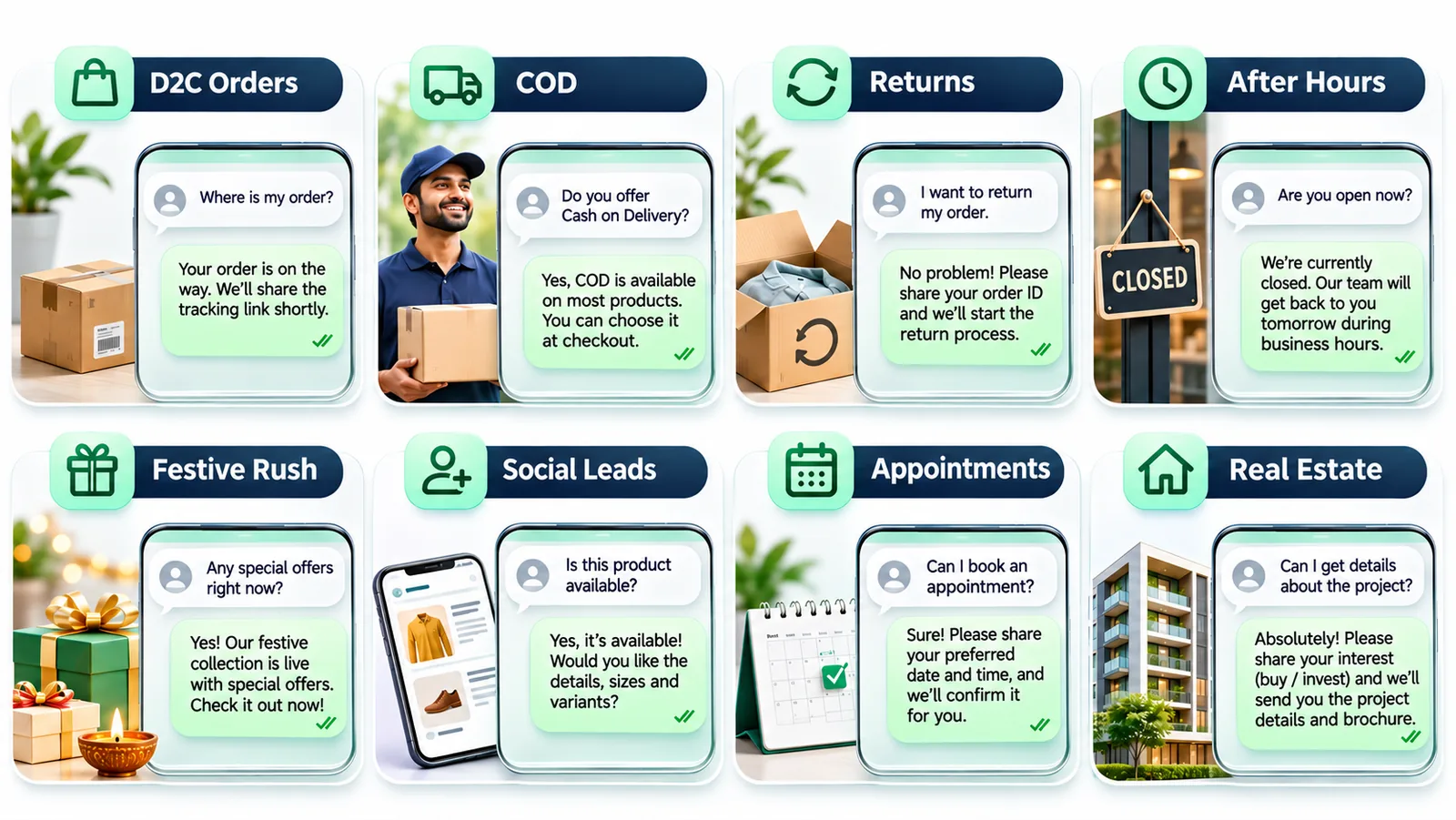
Below are 40 editable WhatsApp auto reply message samples for common business situations. Replace placeholders such as [Name], [Order ID], [Business Name] and [Time] before using them. Do not promise an action, refund or delivery date unless your business can actually fulfil it.
A. General greeting and new enquiries
- Welcome: Hi! 👋 Welcome to [Business Name]. Thanks for messaging us. How can we help you today?
- New customer: Hello! Thank you for contacting [Business Name]. Please tell us what you are looking for, and our team will guide you.
- Product enquiry: Thanks for your interest! Please share the product name or screenshot so we can help you with details and availability.
- Sales enquiry: Hi! Our sales team has received your message. Please share your requirement and preferred budget, and we will get back to you.
- Response acknowledgement: Thanks for reaching out. We have received your message and will review it shortly.
B. D2C orders and delivery status
- Order acknowledgement: Thank you for shopping with [Brand Name]! Your order request has been received. We will share the confirmation once it is processed.
- Order ID request: We can help you check your order. Please share your order ID or the mobile number used during checkout.
- Order processing: Your order [Order ID] is being processed. We will share the next update as soon as it is available.
- Shipped: Good news! Your order [Order ID] has been shipped. You can track its progress here: [Tracking Link].
- Delivery delay: Sorry for the delay with order [Order ID]. Our team is checking the latest delivery information and will update you shortly.
C. Cash on Delivery (COD) enquiries
- COD availability: Thanks for your interest! Please share your PIN code so we can check the available payment and delivery options.
- COD confirmation: Your COD order request has been received. Please confirm your name, delivery address and contact number before we proceed.
- Order verification: We are verifying your COD order [Order ID]. Please reply YES if you would like us to proceed.
- Delivery reminder: Your COD order is expected to arrive soon. Please keep the payment amount ready and ensure someone is available to receive it.
- COD not available: COD is currently unavailable for this order or delivery location. Our team can help you check alternative payment options.
D. Returns, exchanges and refunds
- Return request: Sorry to hear that you need to return your order. Please share your order ID and the reason for the return so our team can guide you.
- Exchange request: We can help with an exchange enquiry. Please share your order ID, current size and preferred replacement size.
- Damaged product: We are sorry about this experience. Please share your order ID and clear photographs of the product so our support team can review the issue.
- Refund status: We have received your refund enquiry for [Order ID]. Our team will check the status and share an update.
- Return policy: You can review our return and exchange policy here: [Policy Link]. If you need help with a specific order, please share its ID.
E. After-hours and away messages
- Outside business hours: Thank you for contacting [Business Name]. We are currently closed. Our working hours are [Days and Hours]. We will respond during the next working period.
- Weekend closure: Thanks for your message! Our team is unavailable on Sunday. We will get back to you on Monday during business hours.
- Public holiday: Thank you for reaching out. Our office is closed today for [Festival/Holiday]. We will resume operations on [Date].
- Busy team: We have received your message. Our team is currently assisting other customers. Please allow us some time to respond.
- Urgent support: We are currently unavailable on chat. If your request is urgent, please contact [Support Number] during the published support hours.
F. Festive season and high-volume enquiries
- Festive rush: Thank you for contacting us during the festive season! We are receiving more enquiries than usual. Our team will respond as soon as possible.
- Sale enquiry: Thanks for your interest in our sale! Please share the product name or link so we can help you check the available details.
- Dispatch delay: Due to high festive order volumes, dispatch may take longer than usual. We will share an update when your order is processed.
- Limited availability: Thanks for checking with us. Product availability can change quickly during the sale. Please confirm the item and variant you need.
- Festive greetings: Wishing you and your family a wonderful festive season! Thank you for choosing [Brand Name]. How may we assist you?
G. Instagram DM continued on WhatsApp
- Continue conversation: Hi! Thanks for connecting with us on Instagram. We can continue helping you here on WhatsApp. Please share the product or enquiry details.
- Product from Instagram: Saw something you liked on Instagram? Send us the post link or screenshot and our team will help you with the details.
- Lead acknowledgement: Thanks for reaching out through our Instagram page. Your enquiry has been received. What information would you like us to share?
- Campaign enquiry: Welcome! You contacted us regarding our Instagram offer. Please share the offer or product you are interested in so we can assist.
- Human assistance: Thanks for continuing the conversation here. If you would prefer to speak with a team member, reply HUMAN and we will guide you.
H. Salon and clinic appointments
- Appointment enquiry: Welcome to [Salon/Clinic Name]! Please share the service you need and your preferred date so we can help check availability.
- Booking acknowledgement: We have received your appointment request for [Date]. Our team will confirm the available time shortly.
- Appointment reminder: This is a reminder about your appointment at [Business Name] on [Date] at [Time]. Please reply if you need assistance.
I. Real estate enquiries
- Property enquiry: Thank you for your interest in [Project Name]. Please share your preferred configuration, budget range and location requirements so our property consultant can assist.
- Site visit: We would be happy to arrange a site visit. Please share your preferred date and time, and our team will check availability and confirm.
These templates are starting points, not universal scripts. Personalise them with the business name, actual service hours, verified links and relevant next steps. In API-based messaging, also check whether the message is being sent inside an open customer service window or requires an approved template.
How to Write an Effective WhatsApp Greeting or Away Message
A good automatic response should not sound like a machine-generated acknowledgement. It should make the next step clear and help the customer understand when or how they will receive assistance.
Use this five-part message structure
- Acknowledge: Thank the customer for contacting you.
- Identify: Mention your business or relevant team.
- Set expectations: Explain when the customer can expect a response, without promising an unrealistic deadline.
- Give a next step: Ask for an order number, product name, preferred date or other necessary information.
- Keep it concise: Use short sentences that are easy to understand on a mobile screen.
For example, 'Thanks for contacting ABC Store. We are currently closed and reopen at 10 AM tomorrow. If your enquiry is about an existing order, please share your order ID. Our team will review it during working hours.'
This is more useful than 'We will get back to you soon' because it explains what the customer can do while waiting.
Common mistakes to avoid
- Promising an immediate reply when nobody is monitoring the inbox.
- Sending a long promotional paragraph as the first greeting.
- Asking for sensitive personal or payment information unnecessarily.
- Sending the same greeting repeatedly to returning customers without considering context.
- Using a fixed order status message when the real order status may have changed.
- Failing to provide a human support option for complex requests.
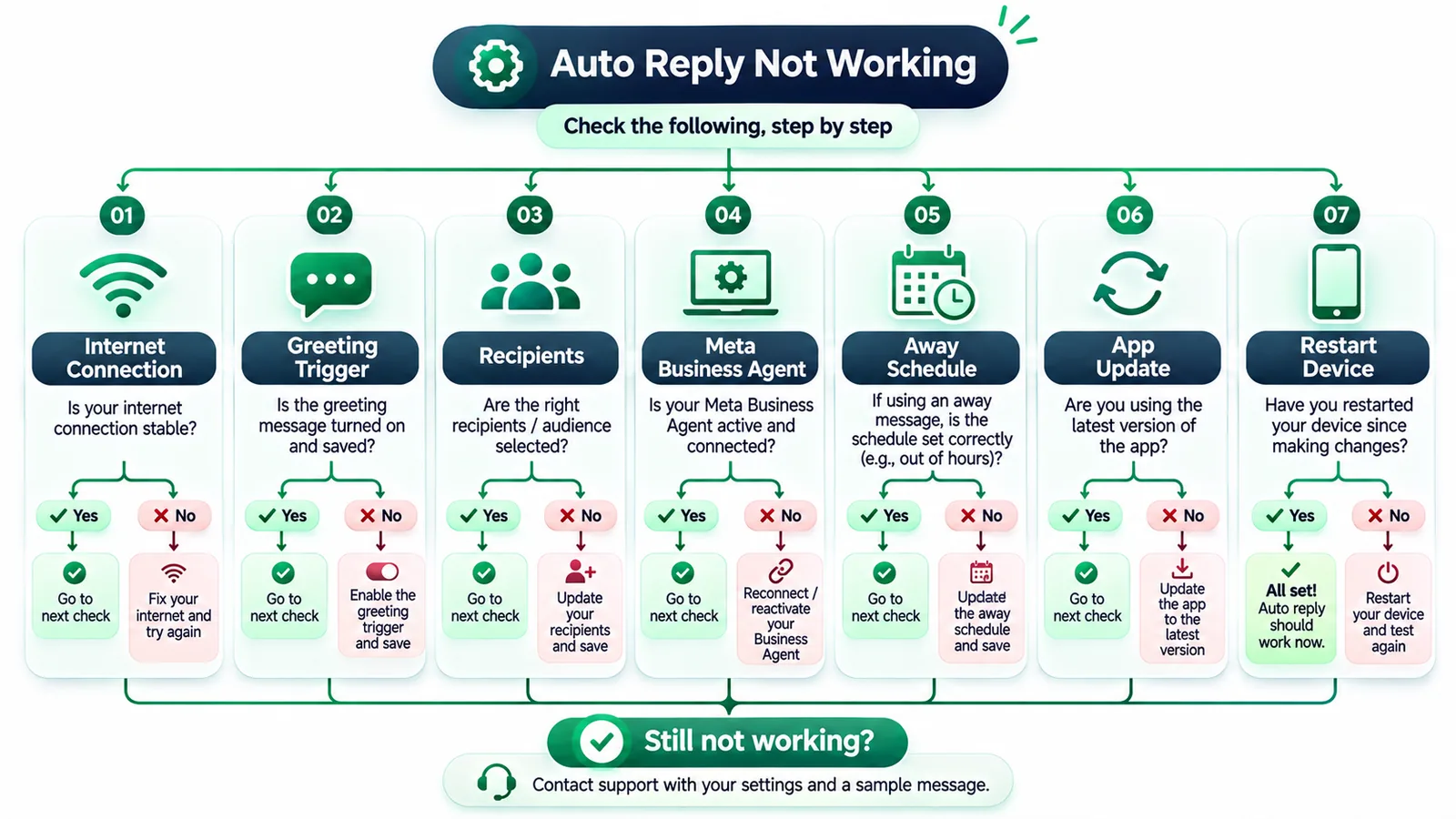
Why Is Your WhatsApp Greeting or Away Message Not Working?
If your automatic message is not being delivered, check the following points before assuming the feature is broken.
1. Your device is not connected to the internet
The WhatsApp Business App requires an active internet connection on the device for greeting and away messages. Check Wi-Fi or mobile data and confirm that WhatsApp Business can connect.
2. Greeting message has not met its trigger condition
Greeting messages are sent when a customer messages you for the first time or after 14 days of inactivity in that chat. If the customer messaged recently, another greeting may not be sent. Testing repeatedly from the same contact can therefore give a misleading result.
3. Your recipient settings exclude the customer
Open the relevant message settings and review Recipients. If you selected Only send to or Everyone except, the contact might not be included.
4. Meta Business Agent is connected
The official WhatsApp Help Center states that greeting messages are automatically disabled when Meta Business Agent is connected. If you want to use the greeting-message feature, the Help Center instructs you to delete Meta Business Agent. Review the implications before changing an account-level feature.
5. Away-message scheduling is incorrect
Check whether Always send, Custom schedule or Outside of business hours is selected. If you use Outside of business hours, confirm that business hours are configured correctly in your business profile.
6. Your app needs updating
Older app versions may display different menus or have issues that have already been fixed. Update WhatsApp Business using the official app store and revisit the Tools tab.
7. Restart and test carefully
For a greeting that is not sending, WhatsApp recommends checking recipients and the 14-day rule, toggling the feature off and on, updating the app and restarting the device. Test with a contact that meets the greeting trigger conditions. For away messages, verify the schedule and device connection.
Use the official greeting troubleshooting instructions and away-message instructions as the reference for current behaviour.
WhatsApp Auto Reply: Consent, Customer Experience and Account Safety
Automatic replies are useful only when they improve the customer experience and follow the relevant platform rules. A business should not treat an incoming message as unlimited permission to send unrelated promotional messages.
Respect customer expectations
Tell customers why you are asking for information and collect only what is needed to fulfil the request. For order support, an order reference may be sufficient to begin the lookup. Do not request passwords, OTPs, full payment credentials or other sensitive information through an automated chat.
Use approved templates where required
For WhatsApp Business Platform messaging, follow the current template approval, category and customer service window requirements. A template being approved does not mean every use of that template is automatically appropriate. The actual message must match its purpose and the applicable policies.
Provide a route to human support
Customers should not be trapped in a loop of automatic responses. Offer a clear way to contact a person, particularly for payment disputes, complaints, cancellations, medical or other sensitive enquiries and unusual cases.
Monitor quality and messaging behaviour
Track unresolved conversations, response times, customer complaints and message quality. Avoid sending repetitive or irrelevant messages. Follow the WhatsApp Business account restriction and ban prevention guide to understand common risks and good messaging practices.
Where Mark360 Fits in Your WhatsApp Auto Reply Strategy
Mark360.ai is designed for businesses that need to move beyond basic acknowledgements and manage customer conversations through automation and team collaboration. The goal is not to replace every human interaction with a bot. It is to automate repetitive work while keeping a clear route to human assistance.
Start with structured chatbot flows
A chatbot can collect information, present options, answer common questions and route customers to relevant workflows. For example, a D2C brand can separate product enquiries, existing orders, returns and wholesale enquiries instead of sending every customer to the same support queue.
Bring conversations into a shared inbox
When more than one employee handles customer messages, a shared team inbox helps the business manage ownership and follow-up. Sales can manage new leads while support handles order issues, without requiring every employee to use one person's phone.
Connect AI with business information
An AI agent becomes more useful when it can retrieve accurate information from an approved knowledge source or connected business system. A customer asking about product specifications can receive an answer based on product data. A customer asking about an order can be guided through an authorised lookup workflow.
Use automation with human oversight
For complicated requests, the system should transfer the conversation to an appropriate person. The agent should be able to see the relevant conversation context and continue from where automation stopped.
Explore the Mark360 WhatsApp chatbot, shared team inbox and WhatsApp API to understand the available capabilities. For businesses also managing Instagram conversations, our separate Instagram auto reply and story reply automation guide covers that channel. Instagram automation and WhatsApp auto replies are separate workflows and should be configured according to their respective platform capabilities.
Which WhatsApp Auto Reply Setup Should You Choose?
Use the following decision framework to avoid buying more technology than your business needs.
| Your situation | Recommended starting point | Reason |
|---|---|---|
| One-person business with occasional enquiries | WhatsApp Business App | Greeting, away and quick replies may be sufficient. |
| Local shop with fixed operating hours | Business App | Simple welcome and after-hours communication is easy to maintain. |
| Growing sales and support team | Cloud API with shared inbox | Conversation ownership and team collaboration become important. |
| D2C brand handling order enquiries | Cloud API with commerce integration | Order lookup and workflow automation can reduce repetitive questions. |
| Business receiving varied natural-language questions | AI agent with API integration | Intent understanding and business knowledge can improve response relevance. |
| Business with complex support cases | AI agent plus human handoff | Automation handles routine requests while people resolve exceptions. |
For most small Indian businesses, the best approach is to begin with the free Business App, make the greeting and away messages useful, and monitor where conversations become difficult to manage. Upgrade when the need for multiple agents, reliable workflows, business integrations or more advanced customer support becomes clear.
Final Takeaway: Build a Better WhatsApp Response System
WhatsApp Business auto reply does not have to begin with an expensive automation system. A properly configured greeting message, away message and set of quick replies can make a meaningful difference for a small business.
However, basic automatic messages have limits. They cannot independently manage a growing sales and support team, retrieve live order information or understand every customer request. WhatsApp Cloud API provides the foundation for more advanced automation, while an AI agent can add natural-language understanding, business-data retrieval and structured human handoff.
The most effective setup is the one that responds appropriately, sets honest expectations, follows WhatsApp policies and gives customers access to a real person when they need one. Start simple, measure what customers ask most frequently, and automate the workflows that genuinely save time without reducing service quality.