

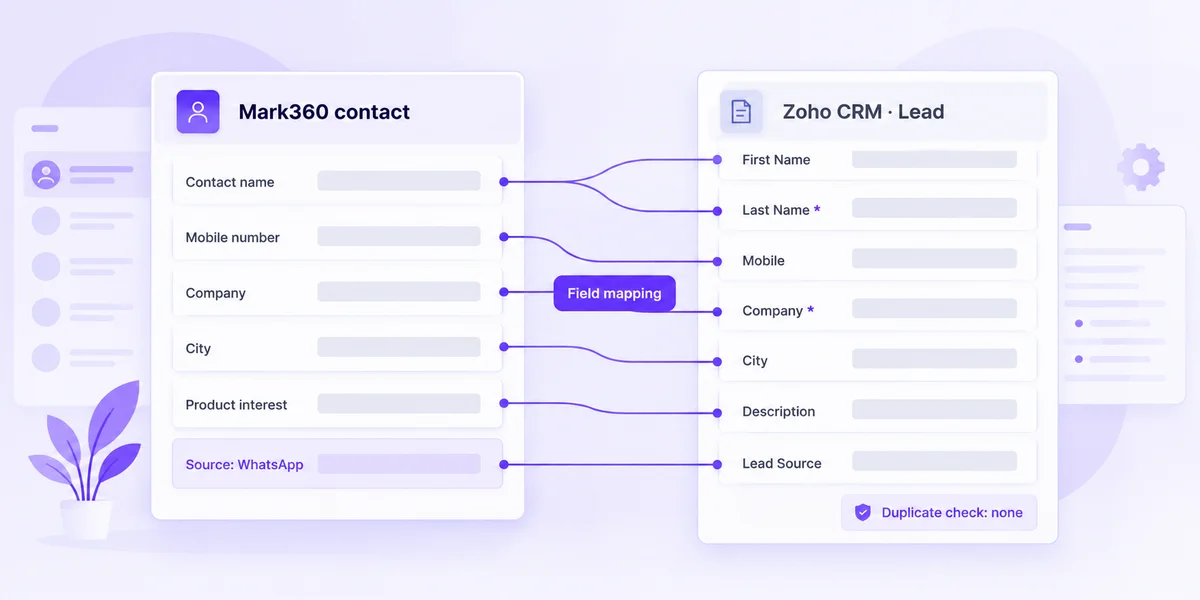
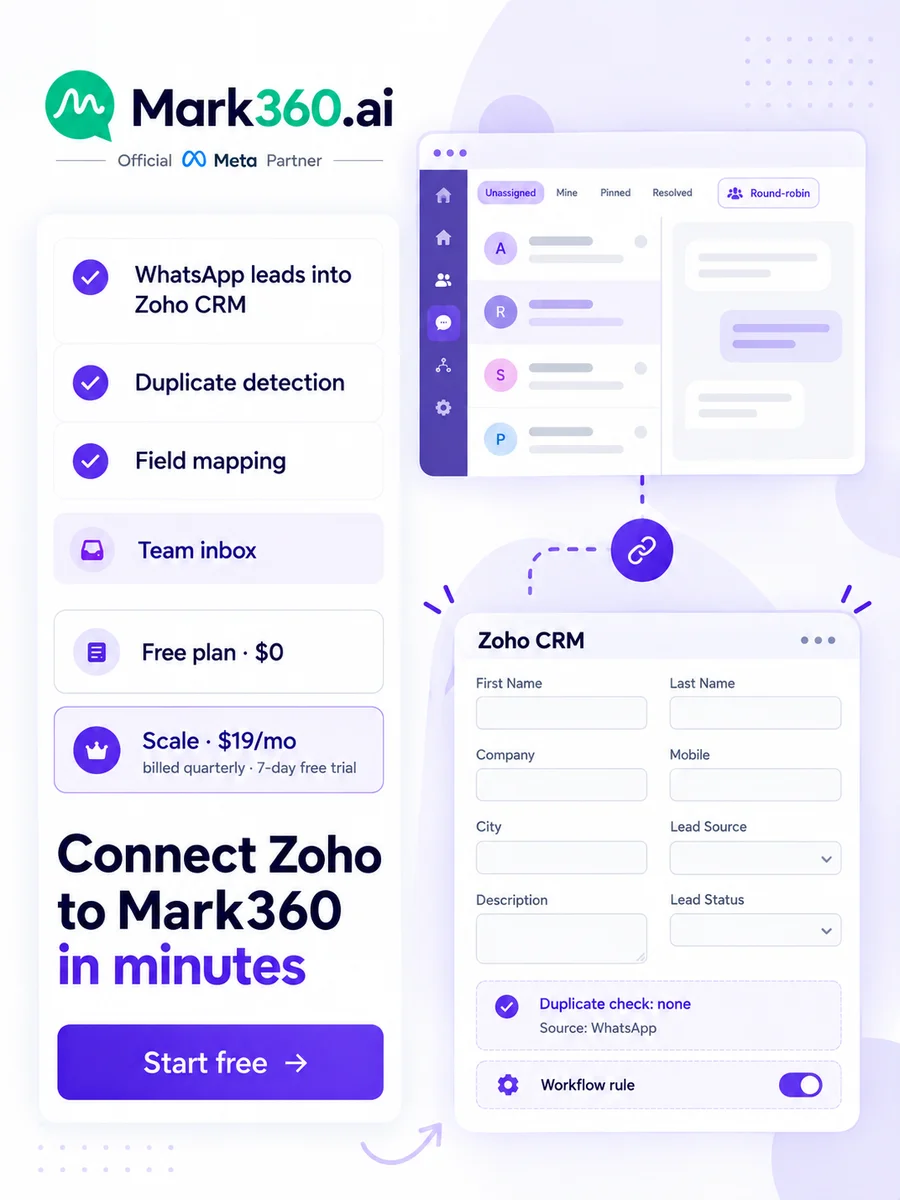
Direct answer: You can connect Zoho CRM with WhatsApp in three ways: Zoho's own WhatsApp channel, a WhatsApp provider's Zoho extension, or a platform that sends WhatsApp leads into Zoho, such as Mark360. Use Zoho's channel if your team replies only inside Zoho CRM. Use Mark360 for a shared WhatsApp inbox, bots and AI agents, with each lead landing in Zoho with duplicate detection and field mapping.
Key takeaways
- Zoho CRM has a native WhatsApp channel in its free trial and all paid editions. Only an admin can set it up, and messages are paid with credits bought in Zoho.
- Zoho's channel only accepts a number not used on another product (migration is supported), so decide which platform owns your number first.
- Provider extensions add a WhatsApp chat widget to Zoho records. Requirements vary: Wati's plugin needs Zoho CRM Professional or higher.
- Mark360's Zoho CRM integration sends WhatsApp leads into Zoho with duplicate detection and field mapping, while the chat stays in the Mark360 team inbox.
- Zoho requires Last Name and Company on every lead, so collect both in the chat before you map fields.
- Run lead-stage automations where the stage lives: Zoho workflow rules for Zoho changes, Mark360 drips and workflows for contact changes, groups and chat events.
Zoho and provider details come from their own help articles, checked on 17 October 2026. Menus change, so confirm on the vendor's site.
What a Zoho WhatsApp integration actually does
A Zoho WhatsApp integration turns a WhatsApp enquiry into a Zoho lead without anyone copying a phone number by hand, and makes sure follow-ups go out on time. The setup you pick decides where your team replies, where automations run and who bills you for messages. This guide assumes Zoho CRM stays your system of record. If you're still deciding that, start with our WhatsApp CRM guide for Indian teams.
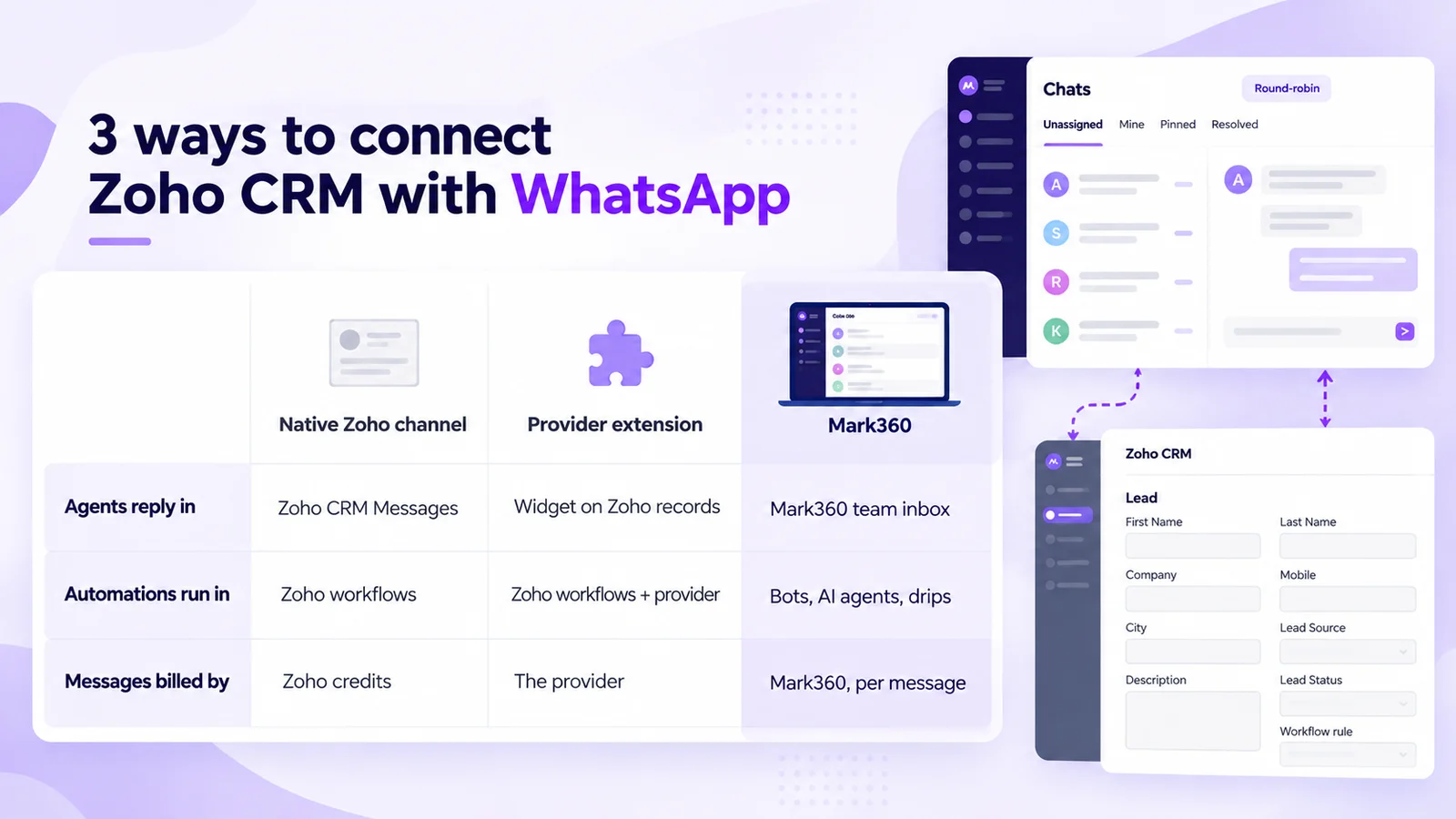
3 ways to connect Zoho CRM with WhatsApp (compared)
| Zoho's native WhatsApp channel | Provider extension in Zoho (e.g. Gallabox, Wati) | Mark360 Zoho CRM integration | |
|---|---|---|---|
| Where agents reply | The Messages module in Zoho CRM | A chat widget on Zoho records, plus the provider's inbox | The Mark360 team inbox: Unassigned, Mine, Pinned, Resolved |
| How a WhatsApp lead reaches Zoho | Unknown numbers are added to the module you choose, with field mapping | Depends on the provider's extension | Leads you create, or a workflow qualifies, with duplicate detection and field mapping |
| Where automations run | Zoho workflow rules, Blueprint and Journey Builder | Zoho workflow rules that call the provider | Mark360 bots, AI agents, drips and workflows |
| Who bills the messages | Credits you buy inside Zoho CRM | The provider | Mark360, per message (India: ₹0.94 marketing, ₹0.138 utility) |
| Best for | Teams that work only in Zoho CRM | Teams already using that provider | Teams that want a shared inbox, bots and AI agents, with Zoho as the lead record |
Provider extensions differ, so check the provider's own documentation for what syncs in each direction.
1. Zoho's native WhatsApp channel
According to Zoho's WhatsApp help article, Zoho CRM's built-in channel is available in the free trial and all paid editions, and only an administrator can set it up. You need a Facebook Business Manager account, a verified business, a WhatsApp Business account and an eligible phone number. The setup:
- Go to Setup > Channels > Business Messaging and, under WhatsApp, click Details > Integrate.
- Log in with your Meta business account and choose the phone number, business portfolio and WhatsApp Business account.
- For messages from unknown numbers, choose the module (Leads, Contacts or a custom module), map WhatsApp fields to its fields, and assign new records to users, roles or an assignment rule.
- Create Utility or Marketing templates under Setup > Automation > Actions > WhatsApp Notification. Meta reviews each one when you save it.
Two limits matter. Only unused phone numbers can be connected (migrating an existing number is supported), and messages go only to leads and contacts. Reps reply in the Messages module within 24 hours of the customer's last message. Sharing one number across Zoho apps such as Desk works only on bundles like Zoho One or Zoho CRM Plus.
2. A WhatsApp provider's extension inside Zoho
Many WhatsApp providers publish a Zoho Marketplace extension that adds a chat widget to Zoho records, so reps send templates and reply without leaving Zoho. Gallabox's Zoho docs show the widget on Leads, Accounts, Deals and Contacts. Wati's Zoho guide requires Zoho CRM Professional or higher. You pay the provider for messages, and automations run as Zoho workflow rules that call the provider.
3. Mark360's Zoho CRM integration
Here your team works WhatsApp from the Mark360 inbox, and Zoho gets a clean lead record. The Zoho CRM integration, one of 12 cards in the Mark360 integration catalog, does three things: it sends WhatsApp leads into Zoho CRM, stops a repeat number from becoming a second lead, and lets you choose which Mark360 fields fill which Zoho fields. It doesn't sync Zoho Books, invoices, deal stages or the full chat log.
Before you start: a 4-point checklist
- Decide who owns the number. Zoho's channel won't accept a number in use on another product, so pick one home for it.
- List the fields you'll send. Name, mobile, company, source and two or three qualifying answers is plenty.
- Check Zoho's mandatory fields. Zoho's standard lead fields make Last Name and Company mandatory.
- Get templates approved. Any message you start, or send after the 24-hour window, must be a Meta-approved template.
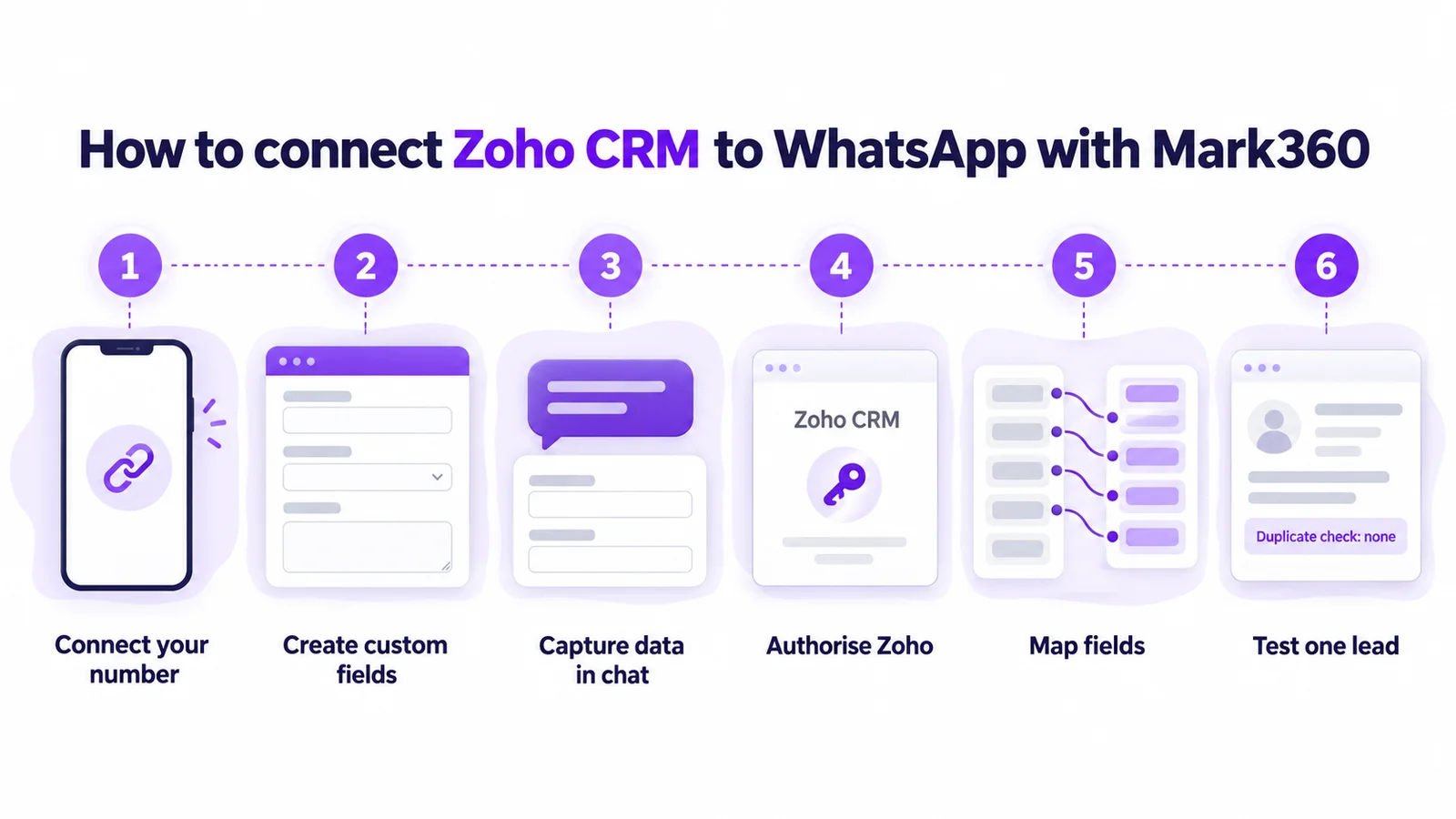
How to connect Zoho CRM to WhatsApp with Mark360 (step by step)
You can do this on the Free plan, without code:
- Connect your WhatsApp number. Sign up for Mark360 and connect your number through Meta's sign-up flow. You never share a WhatsApp password.
- Create custom fields for each value you want in Zoho, such as Company, Product interest, City or Budget (text, number, date or dropdown).
- Capture the data in the chat. A WhatsApp Flow form or a bot question asks for the name, company and what the person wants, and the answers fill your custom fields. Only captured data can be mapped.
- Authorise Zoho. Go to System configuration > Integrations, choose the Zoho CRM card and finish the connect dialog with the Zoho account that should own the leads.
- Map fields. Match phone, name and source first, then your custom fields. Set Source to the fixed value WhatsApp. Leave a Zoho field empty if you don't collect it.
- Create one test lead. Message from a test phone, create the lead and check it in Zoho. Message again from the same number and confirm no duplicate appears.
Not every message becomes a lead. A lead is created when you choose to create one or when a workflow qualifies the person, so casual chats don't clutter Zoho.
Field mapping: Mark360 to Zoho CRM leads
Here's a starting map for the Leads module. Adjust it to your own Zoho layout:
| Value captured in Mark360 | Zoho CRM Leads field | Notes |
|---|---|---|
| Contact name | First Name and Last Name | Last Name is required. A single name goes to Last Name. |
| Mobile number | Mobile (or Phone) | Keep the country code. The duplicate check uses this number. |
| Fixed value "WhatsApp" | Lead Source | Lets Zoho workflow rules filter WhatsApp leads. |
| Custom field: Company (text) | Company | Required by Zoho. Ask for it, even if it's a shop name. |
| Custom field: Product interest (text) | Description or a custom Zoho field | Use a custom field if sales will filter on it. |
| Custom field: City (text) | City | Helps Zoho assignment rules route by territory. |
| Custom field: Budget (number) | A custom number field | Map number to number so Zoho can sort it. |
Keep numbers in one format with the country code, because a differently formatted number can slip past a duplicate check. And don't use tags as a stand-in for stage: tags are for segments, while Lead Status in Zoho is the stage.
Lead-stage automations and follow-ups
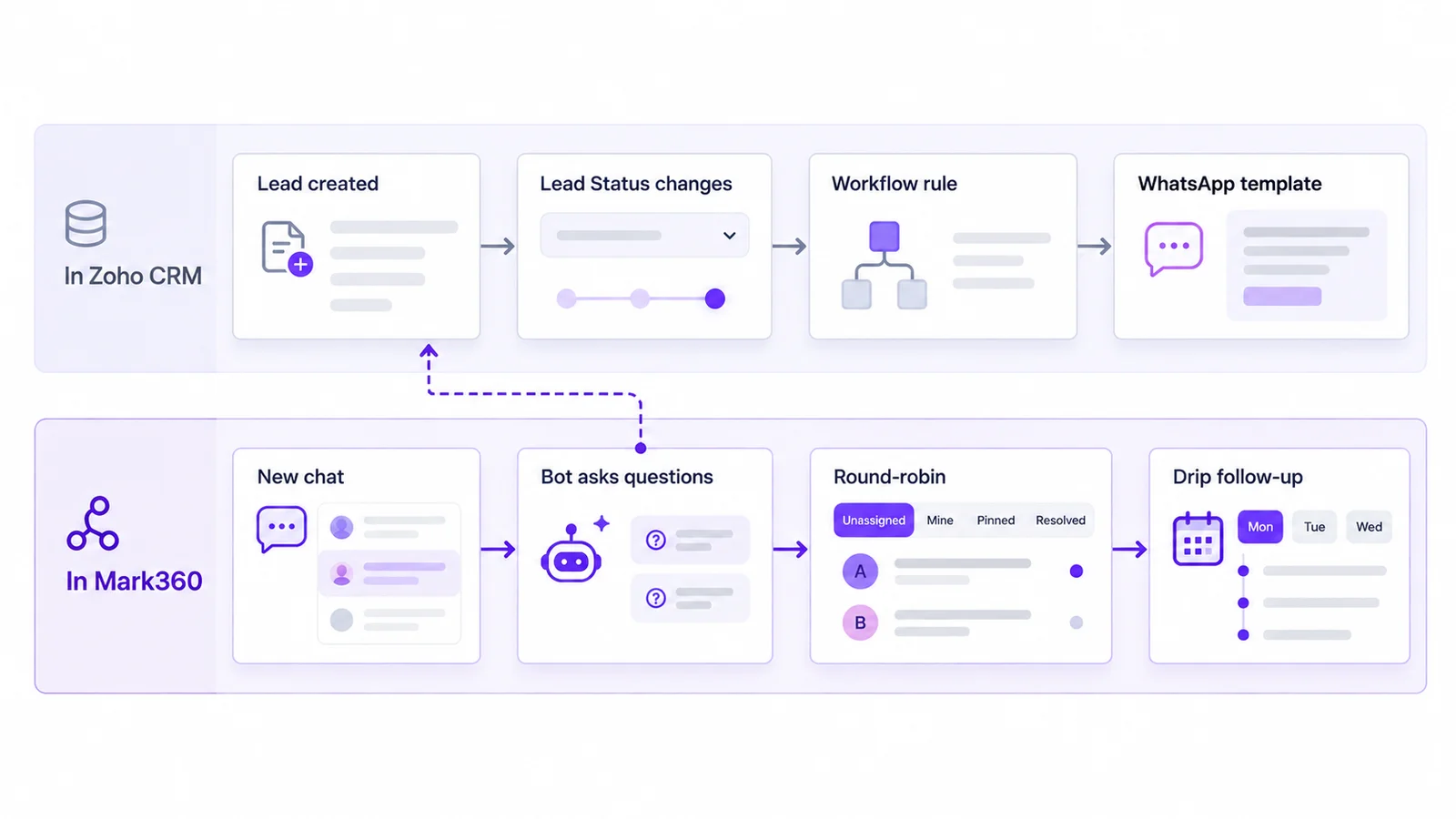
Follow-ups belong in the system that knows the stage. If a rep moves a lead to Contacted in Zoho, the trigger starts in Zoho. If a bot learns someone booked a demo, it starts in Mark360. Six recipes to copy:
| When this happens | Where it runs | What happens next |
|---|---|---|
| A new contact messages your number | Mark360 | A bot or WhatsApp Flow asks for product, city and company, saves the answers, then creates the Zoho lead. |
| The chat needs a person | Mark360 | Round-robin assigns it in the team inbox. After hours, an away reply goes out. |
| A demo is booked through an appointment bot | Mark360 drip sequence (Appointment Reminder preset) | Reminders go out on the days and hours you allow, and stop at the success condition. |
| A contact joins a "Qualified" dynamic group | Mark360 workflow | Sends an approved template, waits, then sends a follow-up email through SMTP. |
| Lead Status changes in Zoho (e.g. to Contacted) | Zoho's native channel | A Zoho workflow rule sends an approved WhatsApp template. |
| Lead Status changes in Zoho, number on Mark360 | Zoho plus your developer | A Zoho workflow webhook calls your server, which sends a template with a Mark360 API token (send_templates). |
One boundary: Mark360's Zoho card sends leads one way, from WhatsApp to Zoho, and doesn't pull Zoho stage changes back. For that, use the last row's route with Mark360's API tokens and webhooks. To build the sequences, see WhatsApp drip marketing. For bots that answer first, see WhatsApp chatbots and AI agents.
Team inbox sync: who replies where
With Zoho's native channel, reps reply from the Messages module and each chat sits on the lead or contact. That's simple if everyone lives in Zoho, but it's a CRM screen, not a support queue.
With Mark360, the chat stays in the WhatsApp team inbox: new chats are spread round-robin and agents work from Unassigned, Mine, Pinned and Resolved, while Zoho holds the lead record. Give sales reps a Mark360 seat with only the modules they need, including a separate View Unassigned Chats permission. See our guide to one WhatsApp number with multiple agents.
Zoho WhatsApp troubleshooting: 7 common problems
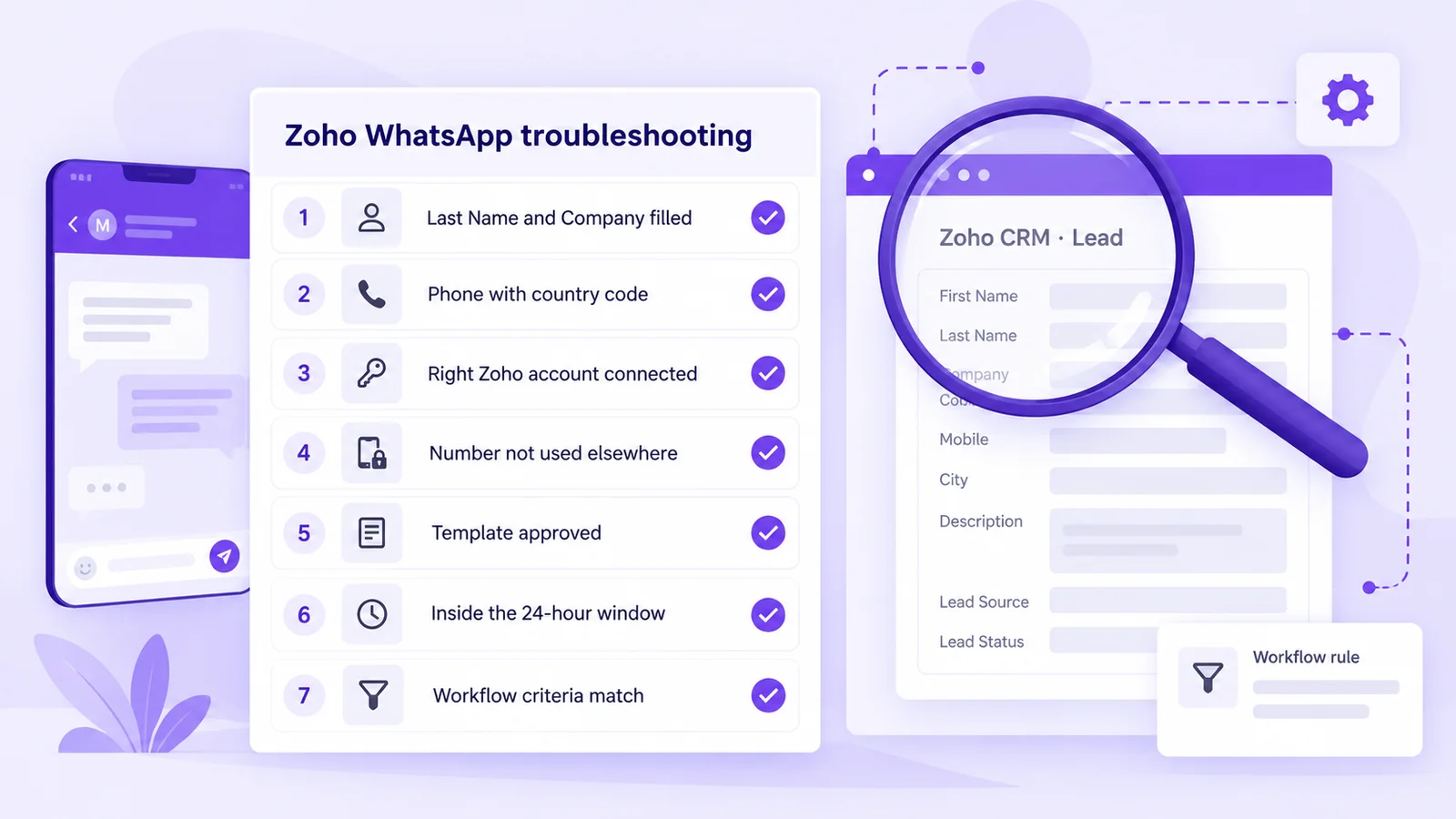
- The lead never appears in Zoho. Check that Last Name and Company are mapped and filled, that you authorised the right Zoho account, and that a lead was actually created.
- Duplicate leads appear. Map the same number field every time, with the country code, and stop manual imports of the same contacts.
- Zoho won't list your number. It may not meet Zoho's prerequisites or may be in use on another product. Migrate it or use another number.
- Your template is missing. Only Meta-approved templates can be sent, and Zoho won't let you edit one in review or after approval, so create a new version.
- You can't reply. The 24-hour window has closed. Send an approved template to reopen the chat.
- A Zoho workflow rule didn't fire. Check whether it runs on create or edit, and whether its criteria match your data (for example, Lead Source is WhatsApp).
- Leads go to the wrong owner. In Zoho's native setup, revisit the assignment for unknown senders. With Mark360, leads go to the Zoho account you connected, and Zoho's assignment rules can take over.
Which Zoho WhatsApp setup should you choose?
- Your team lives in Zoho CRM and handles a few chats: Zoho's native WhatsApp channel.
- You already use a provider with a Zoho extension: install it and keep one vendor.
- WhatsApp is a busy sales or support channel: run it in a shared inbox with bots and AI agents, and send qualified leads to Zoho with Mark360's Zoho CRM integration.
- You don't use Zoho at all: sync contacts to a sheet with Google Sheets instead.
Connect Zoho to Mark360 in minutes
Mark360 is an Official Meta Business Partner based in Surat, India, trusted by 100+ businesses. Connect your number, map phone, name and source to Zoho CRM, and create your first test lead today. Your team replies from one shared inbox, and Zoho gets every qualified WhatsApp lead without copy-paste. Start on the Free plan at $0. Scale is $19 a month billed quarterly, with a 7-day free trial. Messages are billed separately (in India, ₹0.94 per marketing and ₹0.138 per utility message).
Connect Zoho CRM to Mark360, browse all integrations or compare plans and message prices.